Table of contents
If a FetchV Chrome extension detects a stream but the saved file will not play, the problem is usually the handoff between detection, merging, conversion, and playback. FetchV can handle straightforward web video, yet browser permissions and source restrictions decide what you actually receive.
This FetchV review follows that path from support and safety to a reproducible performance snapshot, user-reported failure patterns, and a practical desktop alternative. I will keep the decision simple: use the extension for occasional, non-protected clips, and choose a fuller workflow when organization matters.
- Speed: Variable; a Windows 10 run moved between 0–8 MB/s and finished an 11-minute 4K clip in about 5–6 minutes.
- Ease of use: 6/10; the interface is clear, but quality often requires previewing each detected option and filenames need cleanup.
- Privacy and security: Browser-based operation avoids a separate executable for basic tasks, but the extension can read data on websites you visit.
- Reliability: Source-dependent; reports include corrupt playback, conversion errors, and freezes during concurrent downloads.
- Suitable for: People saving occasional news clips or social videos who can rename files and accept browser download limits.
- Not suitable for: Users who need season queues, subtitle files, managed metadata, or dependable access to protected streaming services.
FetchV Review: What Is It
FetchV is a capable browser sniffer for uncomplicated, non-protected video, but it is not a complete media-library workflow. My practical verdict is to keep it for short, one-off clips and look elsewhere when queues, metadata, or predictable playback are central.
- Listing snapshot: The US Chrome Web Store entry reports version 3.2.
- Snapshot date: August 2026.
- Test snapshot: A Dailymotion 4K clip was checked in Chrome 144.0.7559.133 on Windows 11 over a 250 Mbps wireless connection.
- Best fit: A quick save from a source that exposes a usable MP4, WebM, or HLS stream.
- Skip it when: You need batch downloads, a controlled destination, subtitles, or an organized catalog.
What FetchV Supports
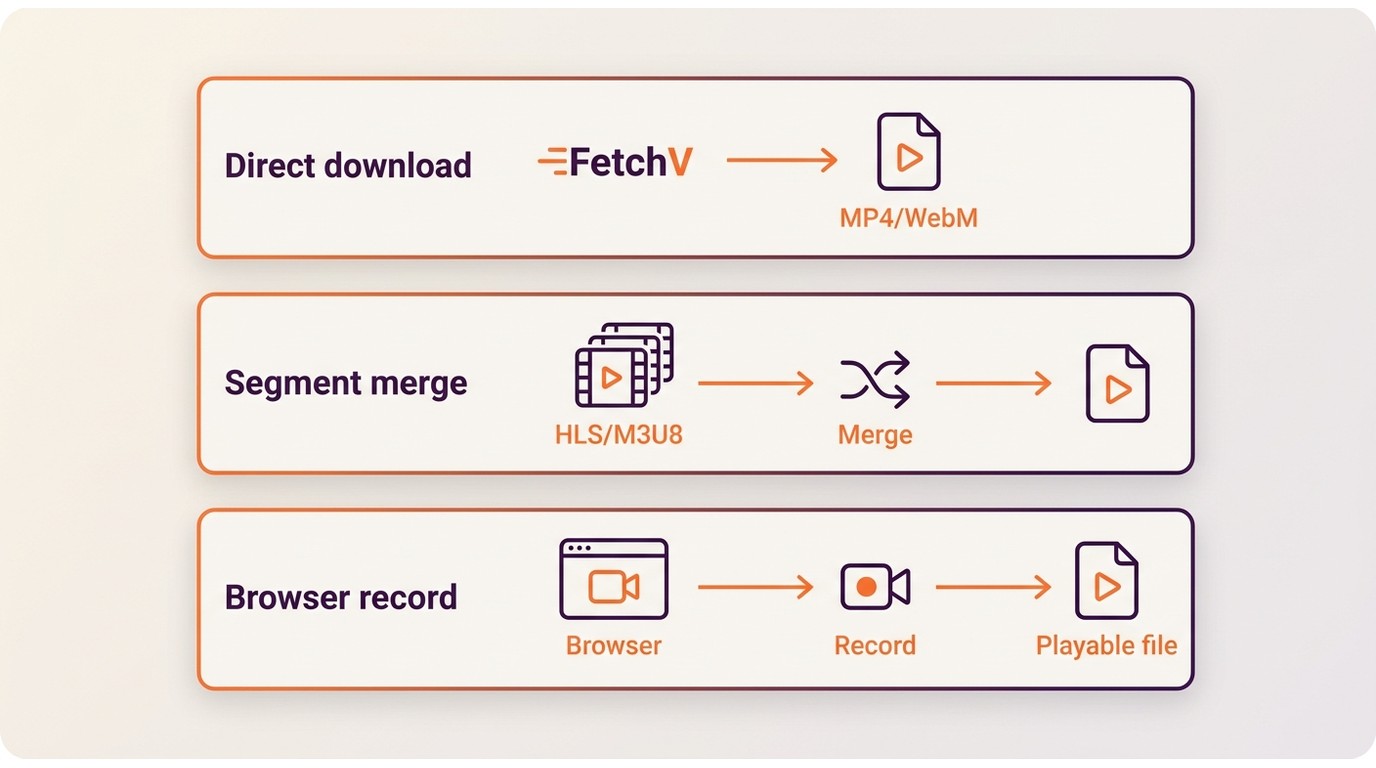
The FetchV Chrome extension watches the network activity of a playing video and offers a detected file when the source is compatible. As a fetchv video downloader, it can expose HLS/M3U8 and direct MP4 or WebM streams, with a simple recorder for formats the downloader does not handle directly.
| Area | Status in August 2026 | Practical note |
|---|---|---|
| Stream detection | HLS/M3U8, MP4, WebM, simple recorder | Depends on the source |
| Chrome, Edge, Brave | Chromium browser workflow | VPN or browser settings can alter detection |
| Firefox | Separate Mozilla listing | Publisher and feature parity are not established |
| Android | Unconfirmed | Do not assume the desktop extension carries over |
| YouTube and protected sources | Chrome build restricts YouTube; protected streams may fail | Check platform rules and playback |
| Output and file size | Downloads folder; no subtitle/metadata controls; large files may fail | Verify playback before organizing |
- No batch download support FetchV does not provide a full playlist or season queue.
- No subtitle saving controls The download panel does not expose subtitle selection or export settings.
- Browser-managed download location Files use the browser Downloads path unless the browser prompts for a destination.
- Protected-stream limitation Detection does not grant access to streams controlled by a platform or subscription. backing up DRM-protected contentUse it only with content you are authorized to save.
Protocols, formats, and limits
HLS M3U8 streams arrive as segmented media that FetchV may need to merge, while a static MP4 or WebM file is more straightforward. The extension can also record briefly when direct saving is unavailable, but a detected item is not automatically a correctly merged, playable file. In my Dailymotion run, the 4K option appeared and produced a file; the detailed quality and playback checks are in the benchmark below.
Browser and device status
The official homepage emphasizes Chrome, Edge, and other Chromium browsers. A separate FetchV Firefox extension listing exists, but its publisher identity and feature parity should be treated independently of the Chromium package. Android support is not confirmed here, so a mobile user should not assume that the desktop extension carries over.
Is FetchV Safe and Legal?
FetchV is not a blanket safety or legality verdict: its browser permissions create a privacy trade-off, and acceptable use depends on your access rights, the platform terms, and applicable law.

Device and privacy safety
For anyone asking “is FetchV safe,” the main trade-off is permission scope rather than a required system executable. Basic tasks run in the browser sandbox, while the extension may read data on websites you visit. I would use a separate browser profile for this kind of extension, keep sensitive sessions out of it, and review permissions after each update. Those precautions reduce exposure without treating a store disclosure as a definitive security verdict.
Current listing and legal boundaries
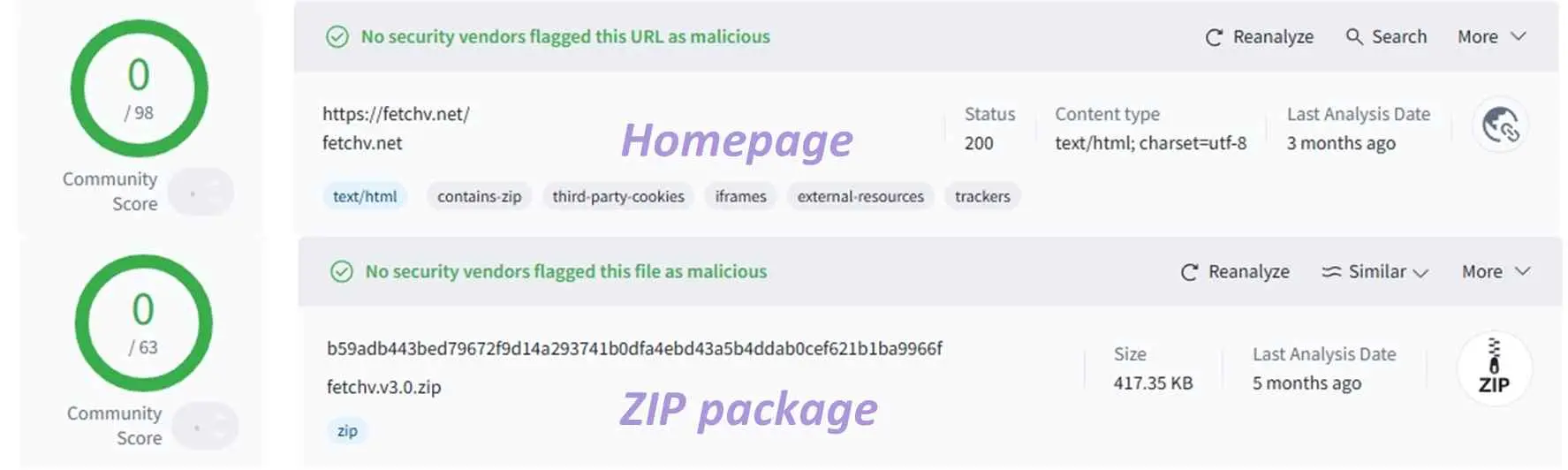
As of August 2026, the US Chrome Web Store listing is live and reports no data collection. Older removal or warning discussions refer to different listing states, so they are useful historical context rather than a final malware judgment. The legal question is tied to the material and account involved: save only content you are allowed to access, and follow the service terms and local law.
Using FetchV in Chrome and Edge
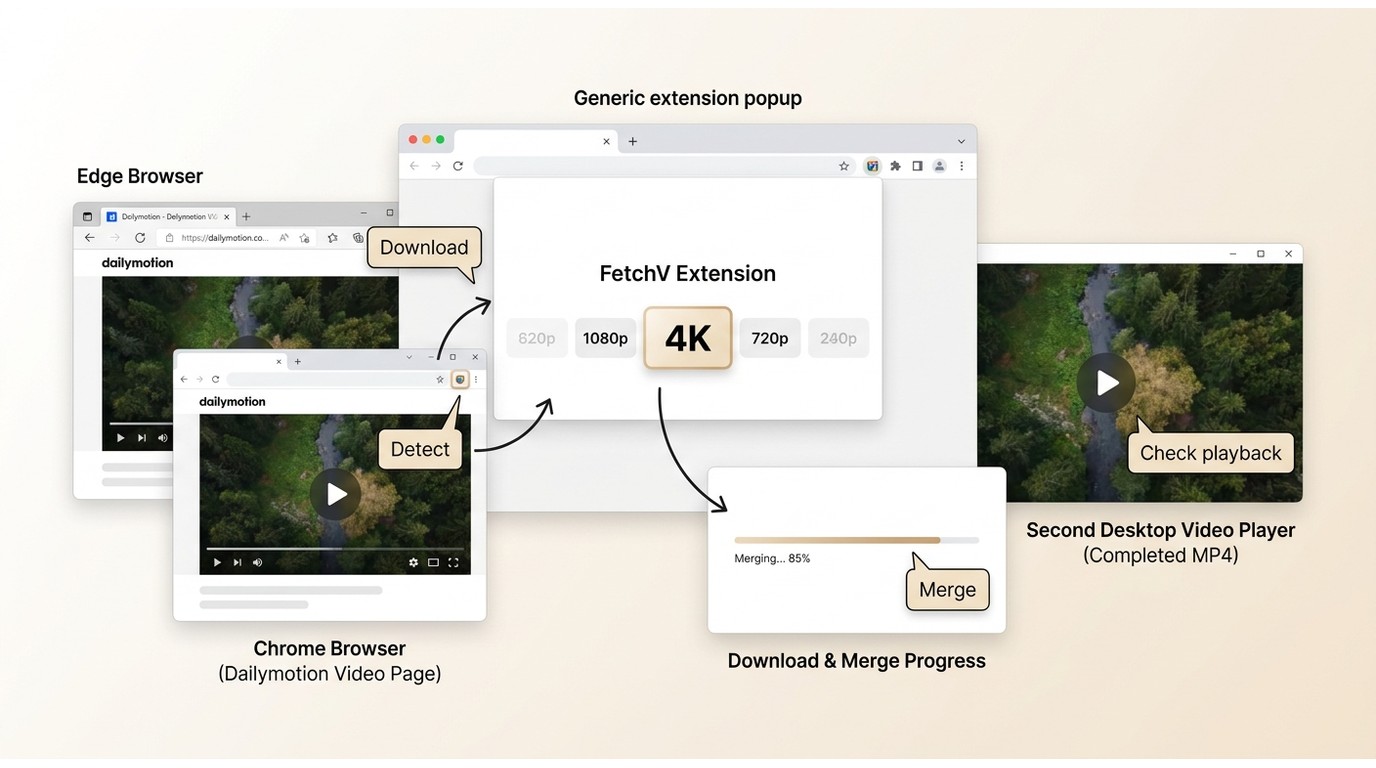
To use extension FetchV, start in Chrome or Edge with a source that you are permitted to save. The steps below keep detection, selection, and playback as separate checks; that separation is the easiest way to avoid mistaking a completed transfer for a usable file.
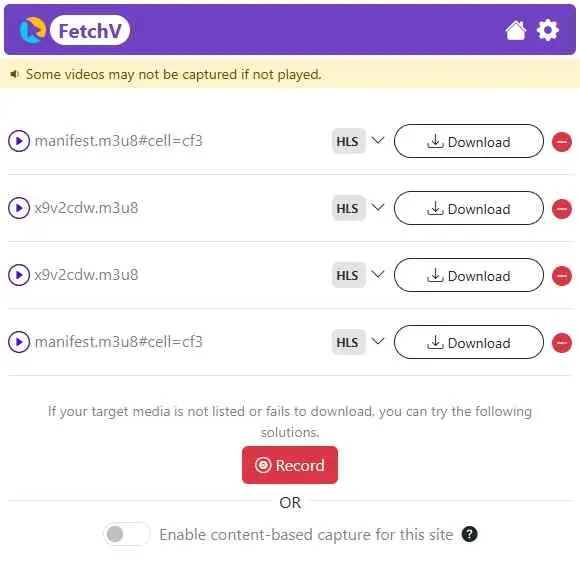
After pinning the FetchV extension, navigate to the page with your video. When you start playback, the extension icon will light up and display the number of detected media files.
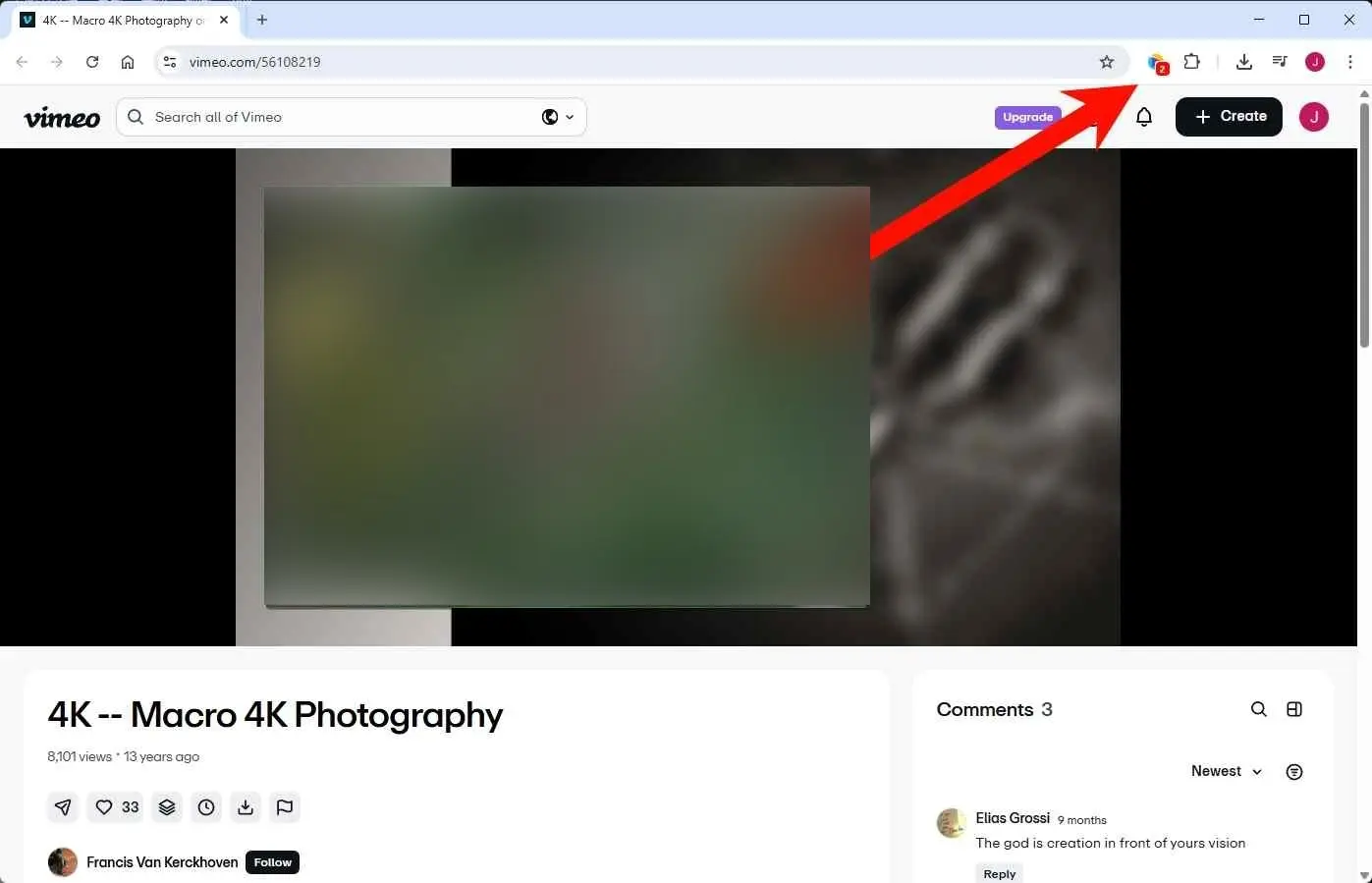
Click the icon to open the pop-up panel. You'll see a list of detected streams, often sorted by resolution and format. Select the quality you want (e.g., 1080p or 4K if available).
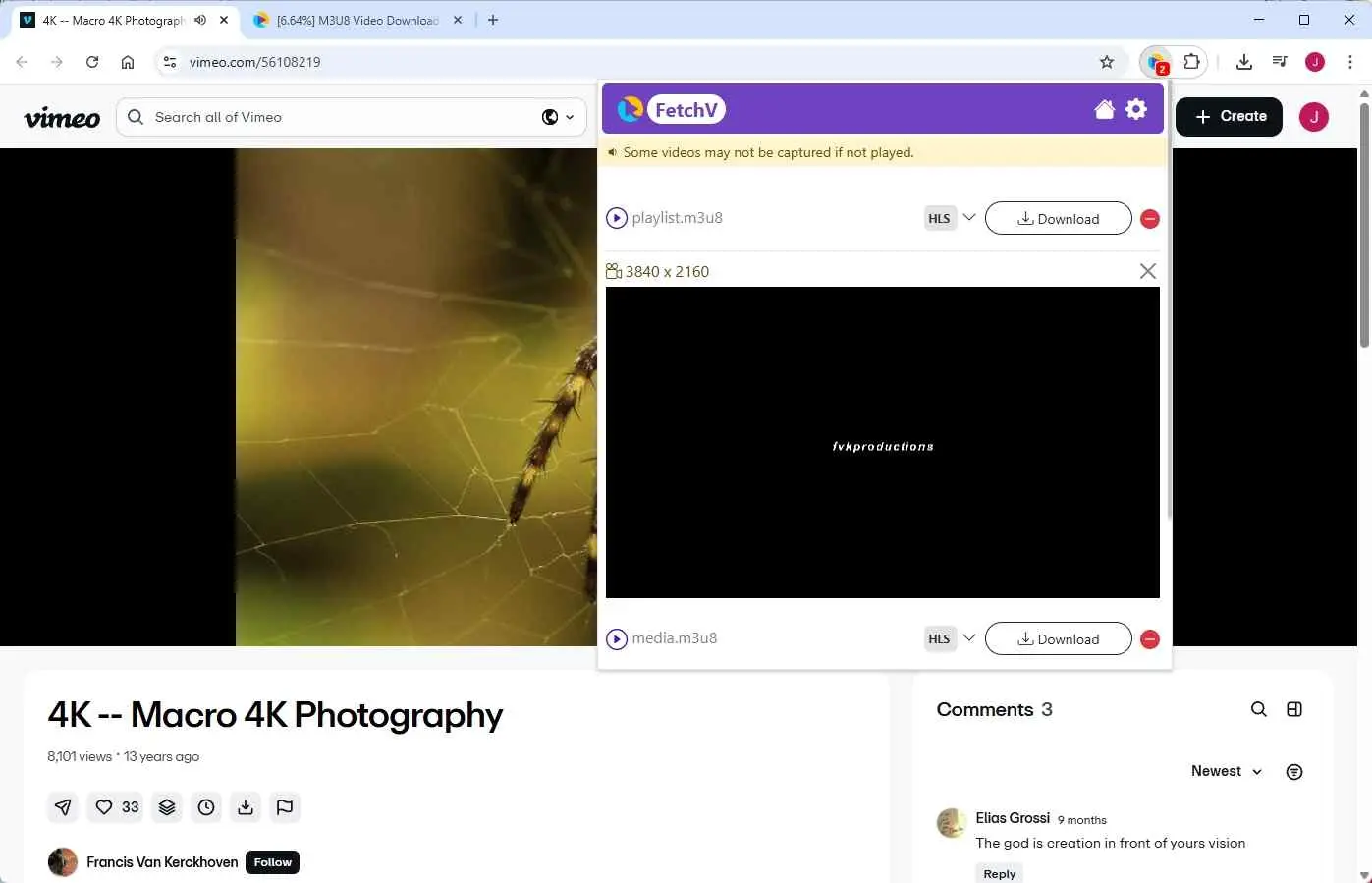
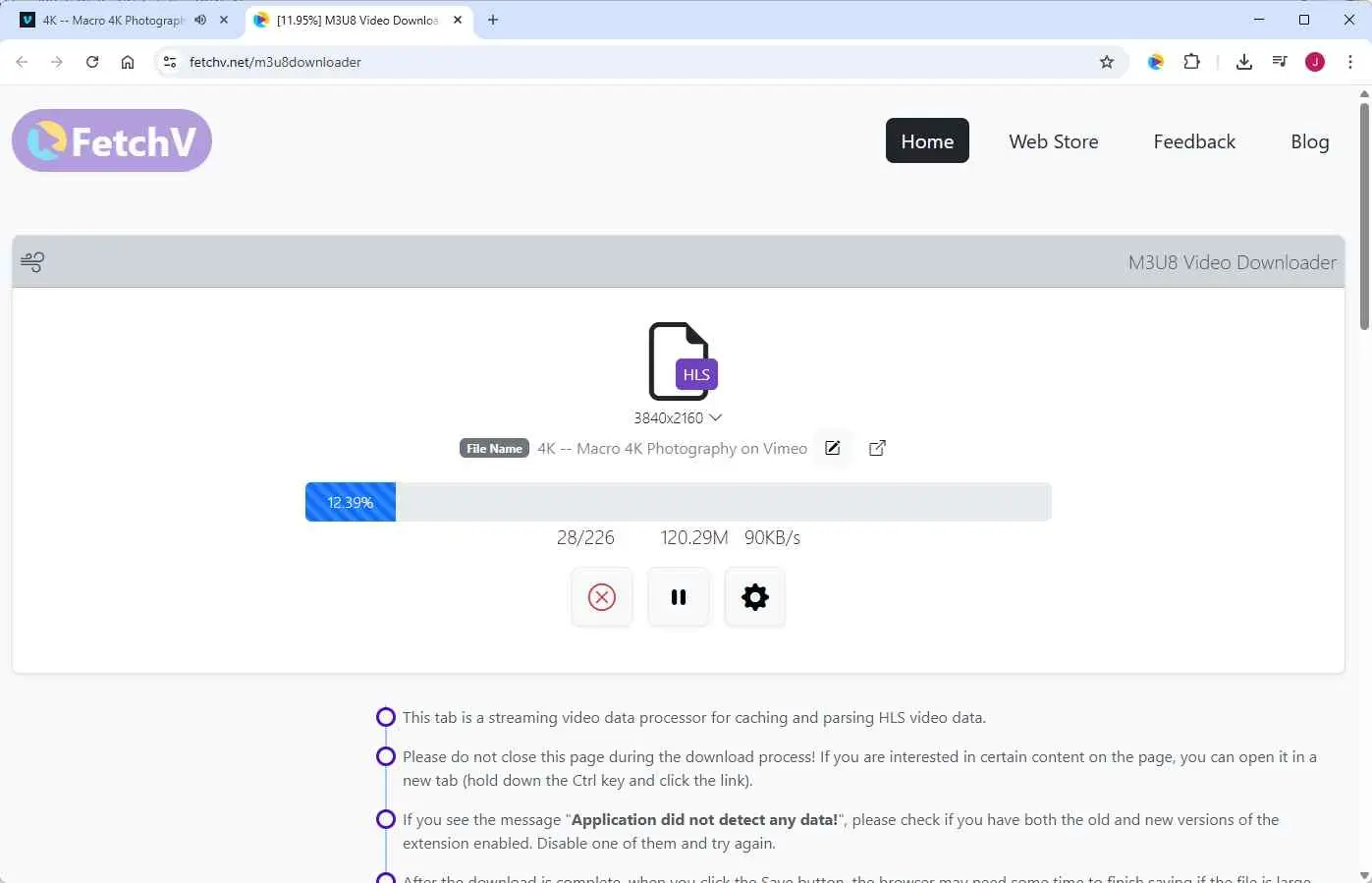
Click the download button. The file will be processed and sent directly to your browser's default "Downloads" folder. You cannot choose a different location during this process.
Before you start
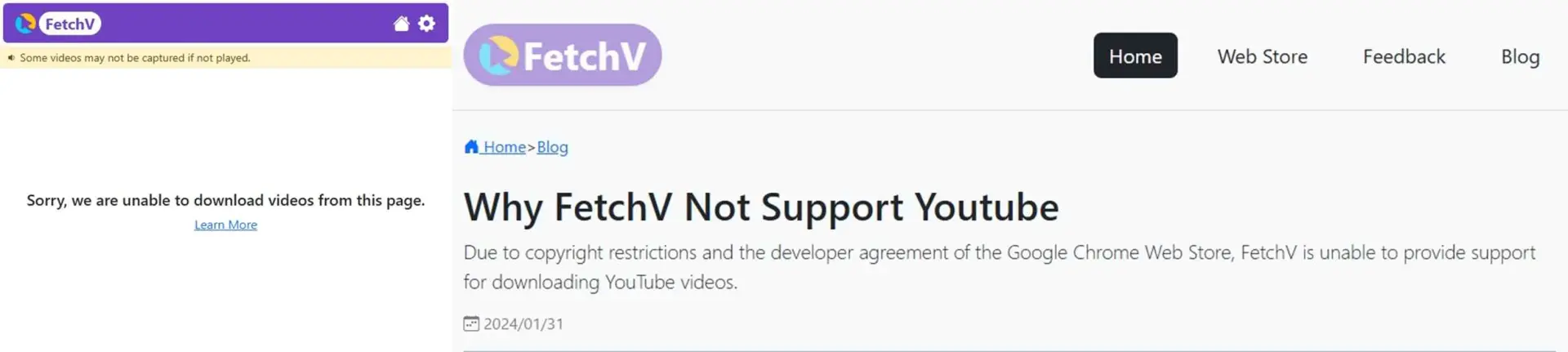
- FetchV detects media streams; it does not manage platform licenses. Protected streams from Netflix, Hulu, Disney+, or Amazon Prime Video may return an error or an unplayable file.
- Preview each detected option to confirm resolution; noisy detections and black previews can occur.
- YouTube is unavailable in the Chrome Web Store build. For other sources, use the browser status and access rules in this guide. section 5A VPN, browser profile, or browser engine can change which options appear.
Detection and download steps
- Open the permitted video in Chrome or Edge and let enough of it play for the extension to inspect the stream.
- Open FetchV and review every detected option; preview the candidate that shows the intended resolution and audio.
- Start the download, then wait for the merge or conversion stage to finish instead of closing the tab immediately.
- Open the resulting file in a second player and check both picture and sound before moving or renaming it.
Troubleshooting missed or corrupt downloads
If detection misses the stream, reload the page, confirm the selected option, and try another detected variant. Brave and other Chromium browsers can behave differently, and VPN settings can change the requests a page makes. If the progress reaches 100% but playback fails, treat detection, merging, conversion, and playback as four separate checkpoints rather than retrying the same candidate blindly.
FetchV Performance and Reliability
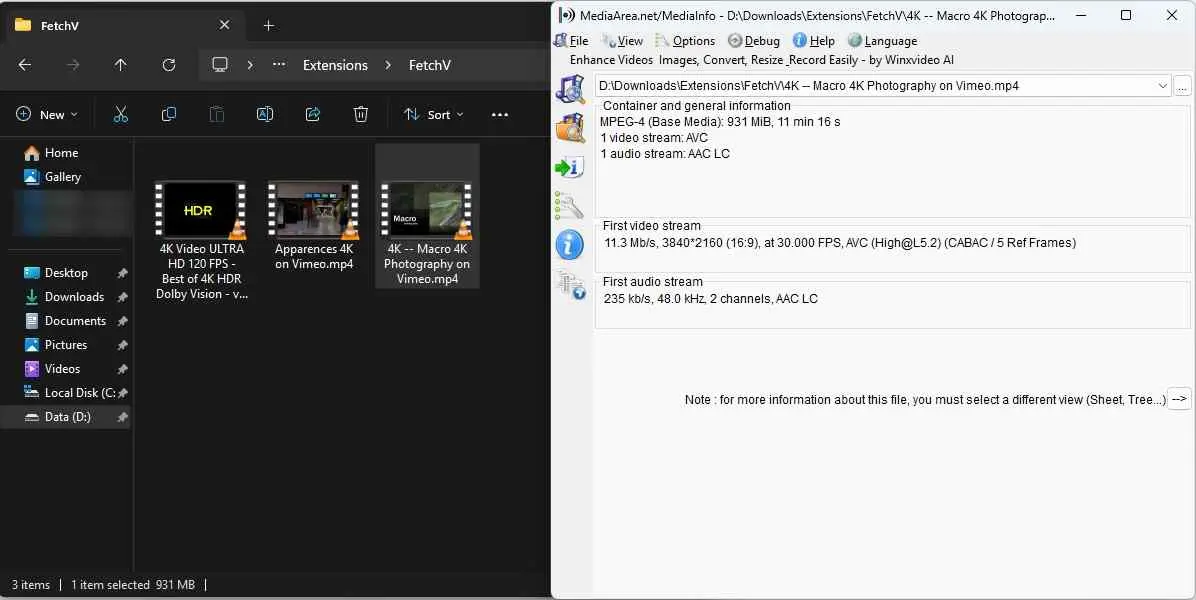
On Windows 11 with Chrome 144.0.7559.133 and a 250 Mbps wireless connection, FetchV detected and completed one 11-minute 4K Dailymotion clip. The resulting file opened with picture and sound, which is the success condition used for this run.
Quality, metadata, and file names
In that Chrome 144.0.7559.133 on Windows 11 Dailymotion check, FetchV exposed a 4K choice and the resulting file opened, but metadata was not preserved. The filename stayed close to the source name, so a personal media library would need manual renaming and tagging. I would call the quality acceptable for a short clip, while the missing metadata matters as soon as several files need sorting.
Speed and test conditions
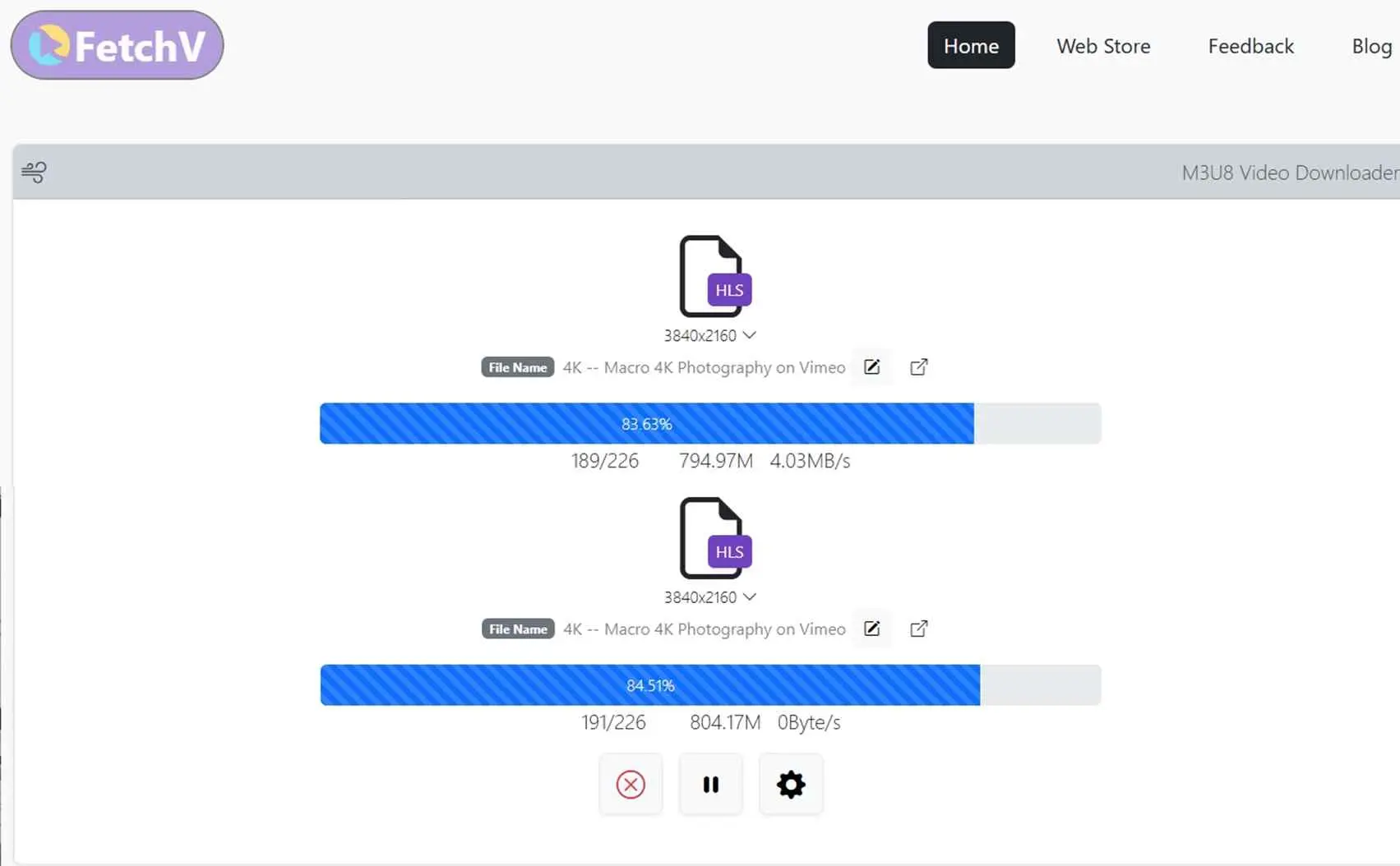
On Windows 10, a separate Dailymotion test of a roughly 10 Mb/s 4K file showed throughput fluctuating from 0 to 8 MB/s, with periodic drops to 0 KB/s; the 11-minute video took about 5–6 minutes to finish. Current official listings describe multi-threaded acceleration, so this range is a dated observation from that setup, not an architectural limit. Because the Windows 10 and Windows 11 runs used different setups, neither result predicts the other.
What Users Report About Reliability
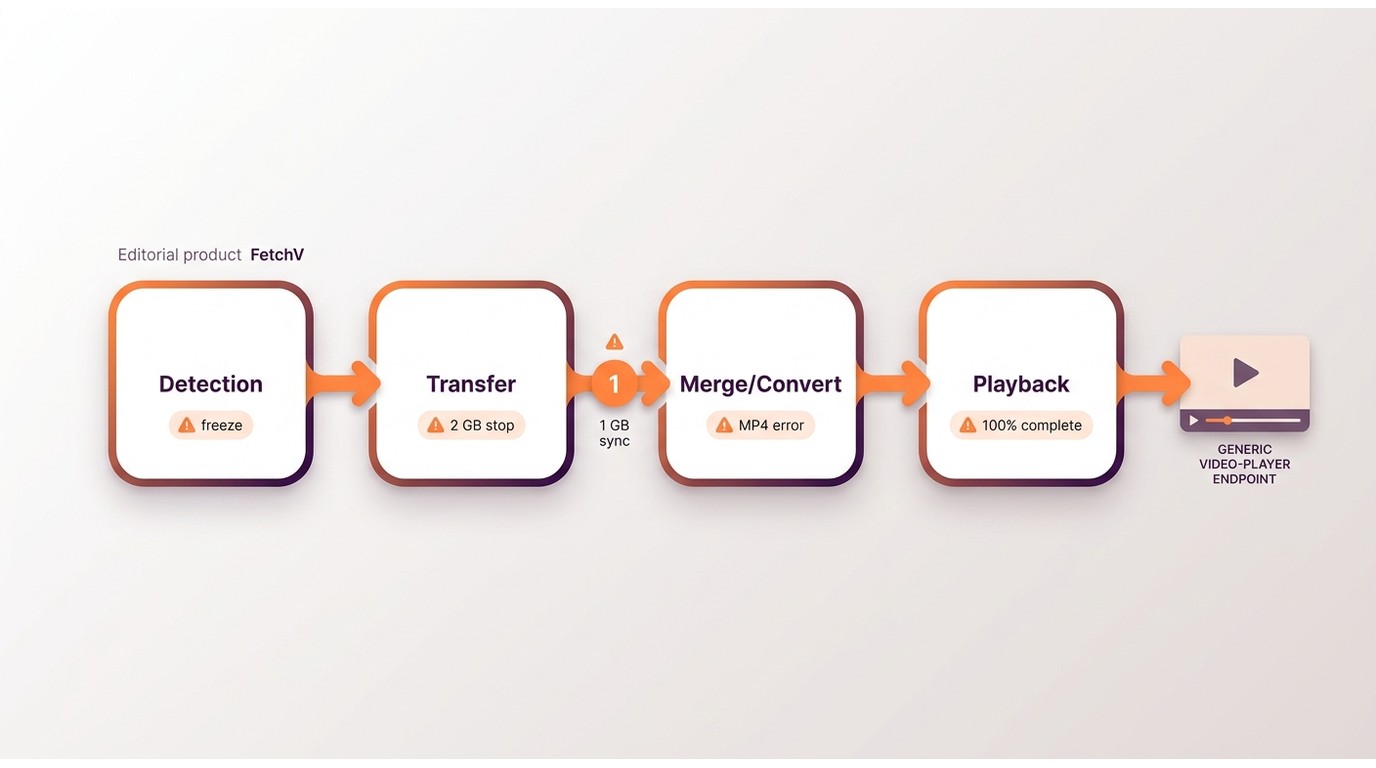
Store reviews and community discussions describe recurring failure patterns, not a guaranteed outcome for every source. The reports include a file that finishes but will not play, synchronization trouble above roughly 1 GB, stops near 2 GB, MP4 conversion errors, and freezes when several downloads run together.
When I see that pattern, I open one completed file in a second player first, then retry a different detected stream only if the source itself looks valid. That quick check separates a bad merge from a browser or source issue without turning one report into a blanket verdict.
StreamFab for Browser as an Alternative
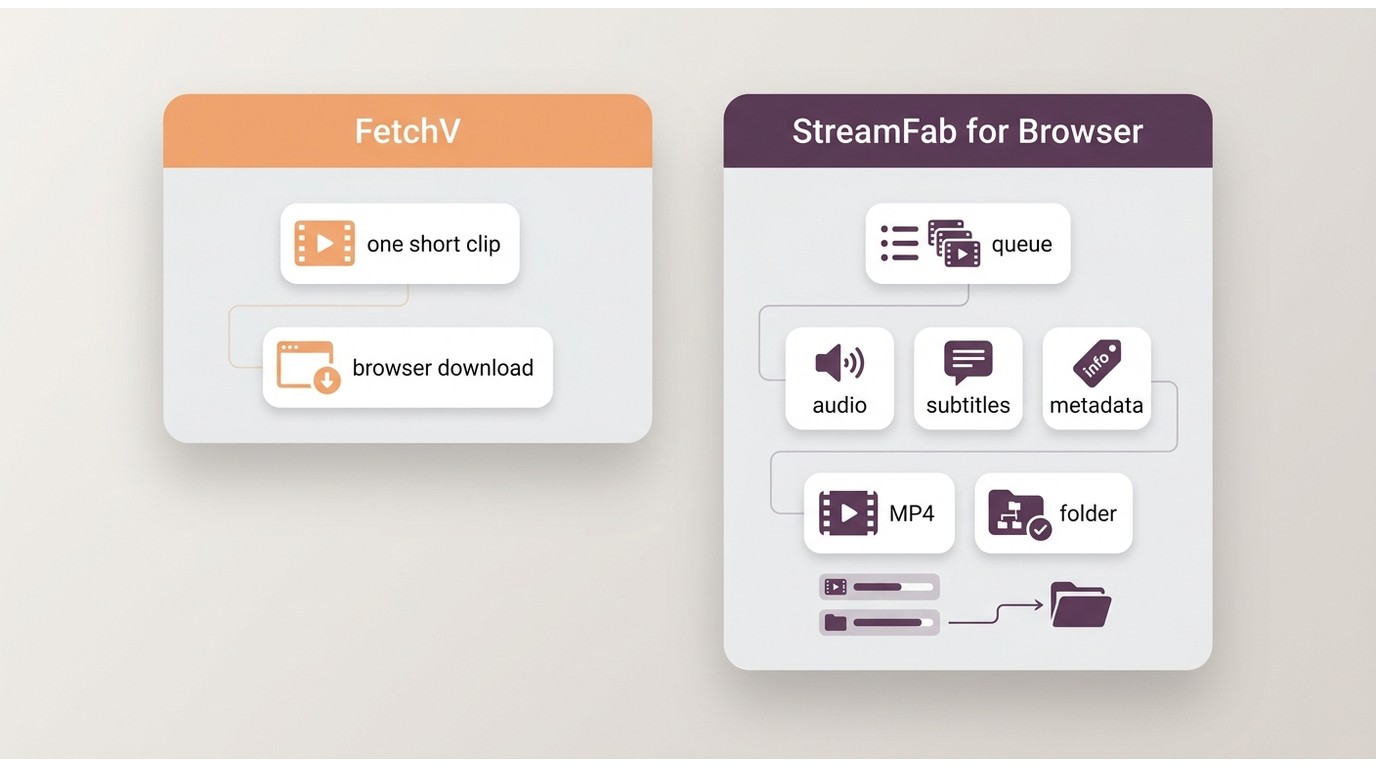
StreamFab for Browser is a better fit when browser detection is not enough and you need queues, selectable tracks, subtitles, metadata, or a chosen output folder. For a single short clip, the added CoApp setup is usually unnecessary.

- For one or two short, non-protected clips, FetchV may be all the setup you need. If you want queues, selectable tracks, subtitles, or files that arrive with useful metadata, a desktop workflow is easier to justify.

For personal offline viewing of content you are authorized to access, where permitted by platform terms and applicable law, StreamFab for Browser offers one practical desktop alternative when a browser-only workflow is too limited. Its extension detects the page, while the CoApp handles the organized download workflow. The official feature set includes batch or playlist queues, selectable audio and subtitles, metadata preservation, MP4 output, and support for eligible 8K, 4K, or HDR sources.

If you're serious about building a personal collection and don't want to spend hours renaming files afterward, StreamFab is worth the extra minute of setup.
Task-based comparison
| Decision point | FetchV | StreamFab for Browser |
|---|---|---|
| Protocol and output | HLS/M3U8, MP4, WebM | MP4 output; source-dependent formats |
| Browser status | Chromium workflow; separate Firefox listing | Chrome/Edge extension plus CoApp |
| Organization | Manual filenames; Downloads folder | Batch queues; metadata and subtitle selection |
| Access limits | YouTube restriction in Chrome build; protected sources may fail | Chrome Web Store build excludes YouTube; coverage depends on build and source |
| Caveat | Detection does not ensure playback | Companion app required; occasional clips may not justify setup |
My take is conditional: FetchV wins on a quick install for a simple clip, while StreamFab for Browser fits a repeatable local-file workflow. The deciding factor is task volume and organization, not a claimed speed multiplier.
Setup and capability boundaries
Install the browser extension and CoApp together, then let the extension hand detected tasks to the companion application. The Chrome Web Store package has its own restrictions, including no YouTube support; the CoApp workflow should not be assumed to have identical site coverage. If you only need an occasional short clip, the extra setup is hard to justify.
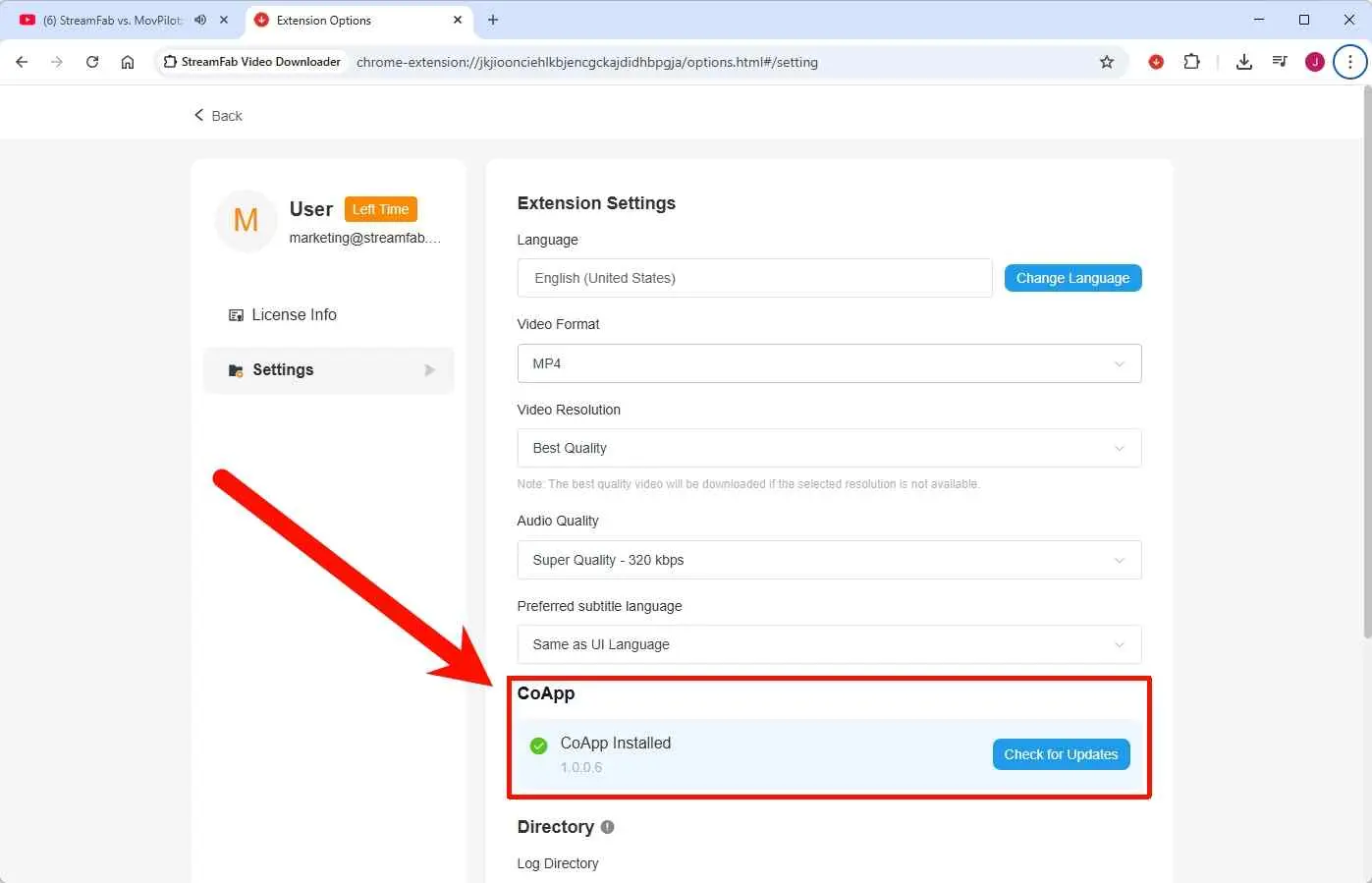
After downloading and installing StreamFab for Browser, pin it to the extensions bar. You can then download CoApp from the settings page, which is a necessary program for StreamFab for Browser to function properly.
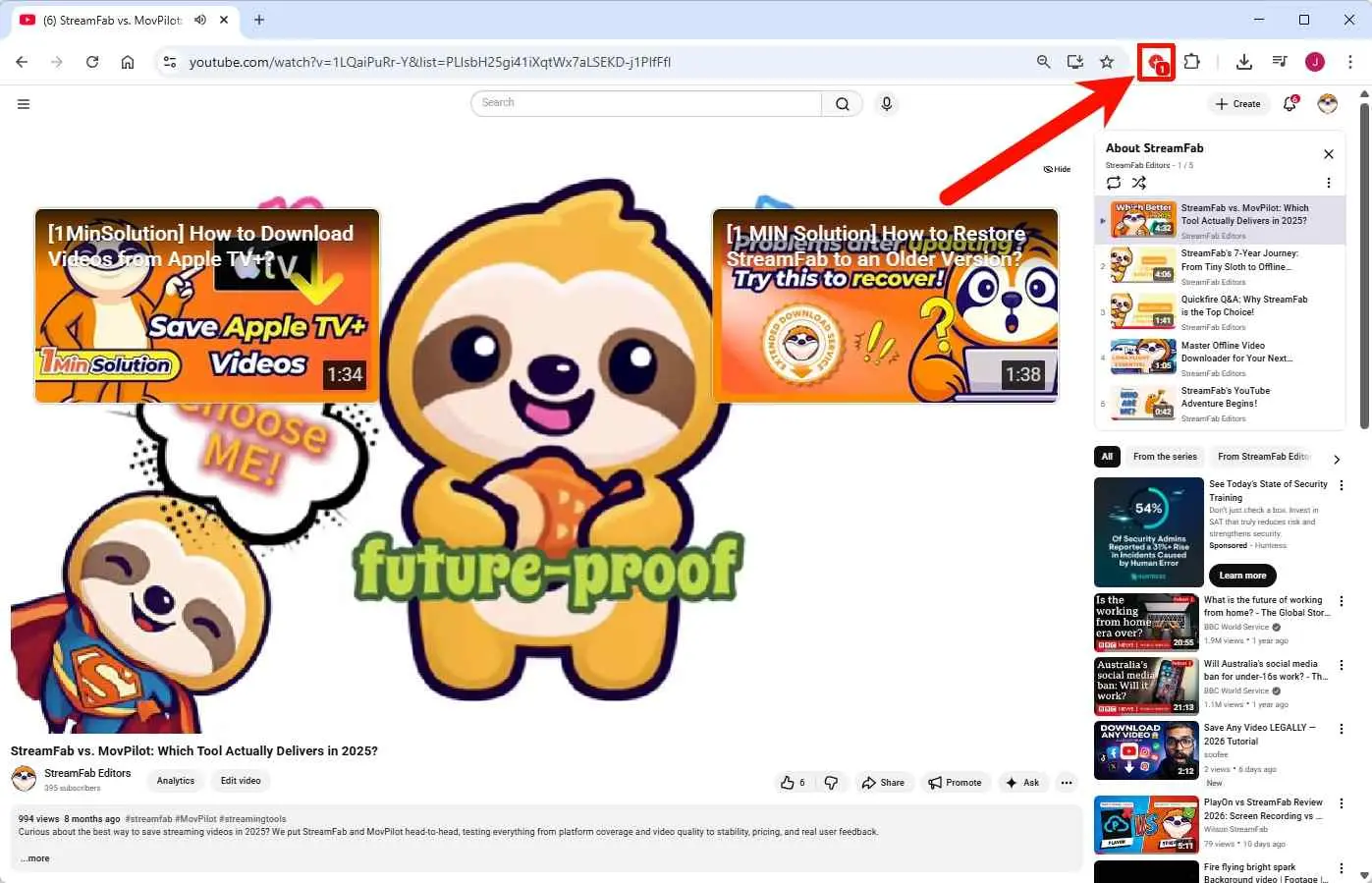
Open the website from which you want to download videos, such as YouTube. Once the video starts playing, the StreamFab for Browser icon will light up, showing the number of videos detected. Click on it.
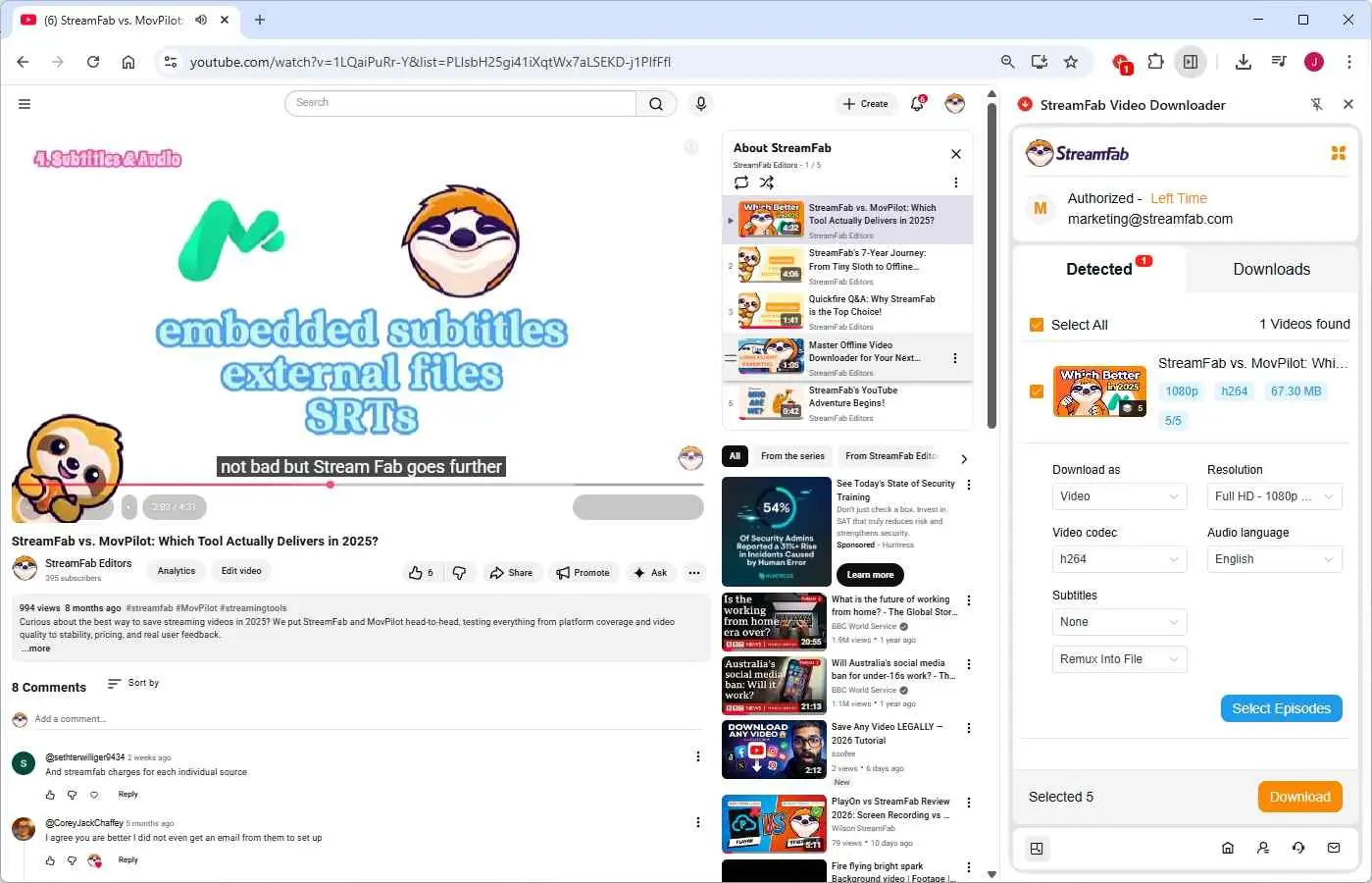
Next, customize the specific options you desire, such as video quality, audio quality, subtitles, audio tracks, etc. You can also select specific episodes to download from a Playlist here. Then, click Download to start the download.
File location note Choose a destination before starting a queue when you want files separated from the browser Downloads folder.
FetchV FAQs
Conclusion
FetchV is a reasonable fit for occasional, non-protected web video when you can accept preview-based selection, generic filenames, and a browser-controlled Downloads folder. Its safety picture is a permission trade-off, and its Firefox and Android story needs more caution than a simple “supported” label suggests.
My recommendation is straightforward: keep FetchV for a small number of clips, but use a desktop workflow when repeatability, subtitles, metadata, or batch organization matters. In either case, save only material you are authorized to access under the relevant platform terms and local law.
- Stay with FetchV if: You need a quick browser save from a compatible, non-protected source and can organize the file yourself.
- Choose StreamFab for Browser if: You want queues, selectable tracks, metadata, MP4 output, or a repeatable local-file workflow and are comfortable installing the CoApp.
