
I updated StreamFab, and now it crashes every time I try to download.

The new version removed a feature I relied on; can I go back?
If StreamFab started crashing after an update, or a service stopped working, don't downgrade immediately. First check the latest release notes, confirm whether the affected service has a current incident, note your installed version, and back up your settings and task data. The practical answer is that a StreamFab rollback can help with a confirmed release regression, but a service-side change may require an update or official support instead. This guide covers three official/tested workarounds: reset temporary files, install an older build side by side, or perform a clean reinstall.
Should You Downgrade StreamFab?
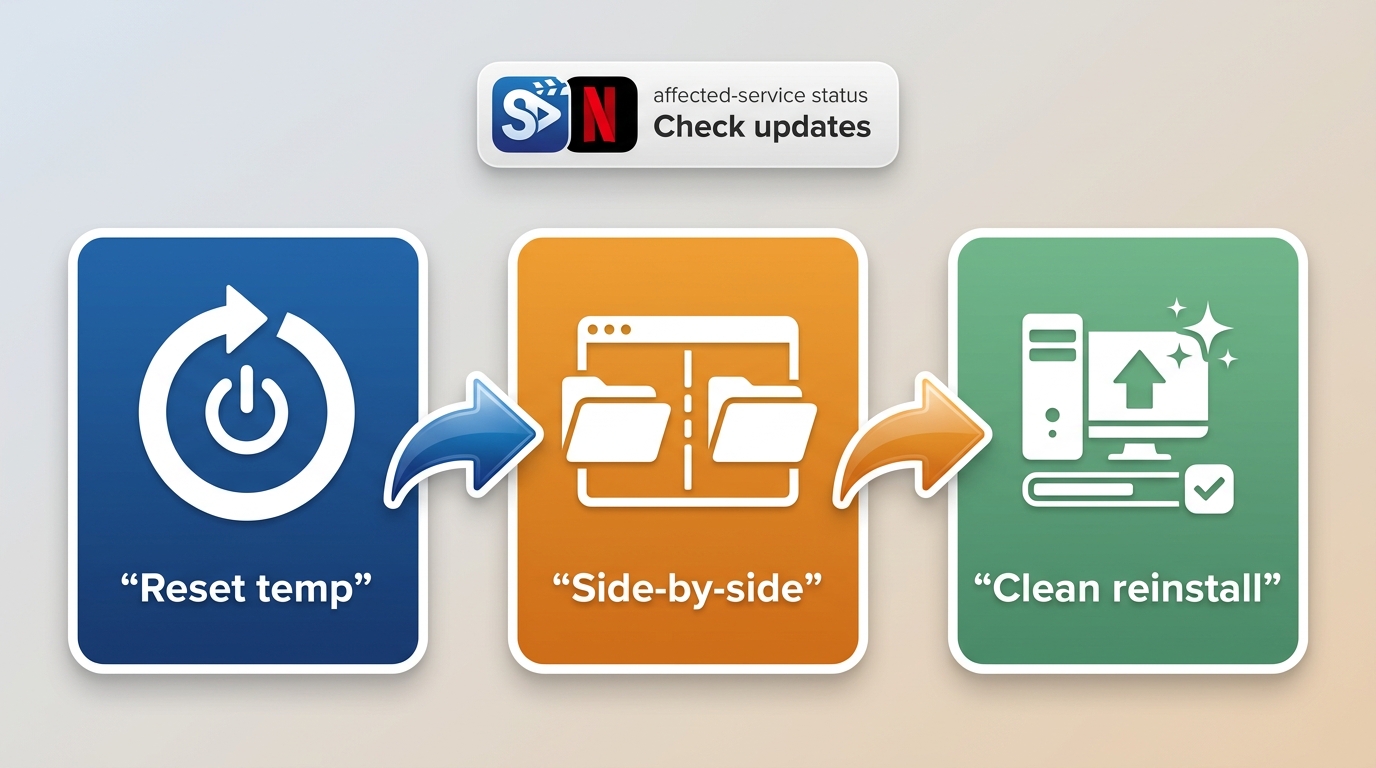
Use this order: check the release notes and the affected service first, reset temporary files if update residue is suspected, then choose a rollback only when the problem points to the current build. A side-by-side installation preserves your existing folder, while a clean install is better suited to a damaged local installation. For either rollback route, use an installer you already saved or a historical installer available through Extended Download Service; the current Download Center primarily provides the current Windows offline package.
- 1. Reset temporary files: first aid when update residue or cache corruption is suspected
- 2. Side-by-side installation: preserve the current folder while installing an older build separately
- 3. Clean uninstall and reinstall: remove a damaged local installation before installing the target build
Below, I'll walk through each method in detail, along with important precautions to avoid losing your settings or breaking your installation further.
Why You Might Need to Return to an Old Version of StreamFab
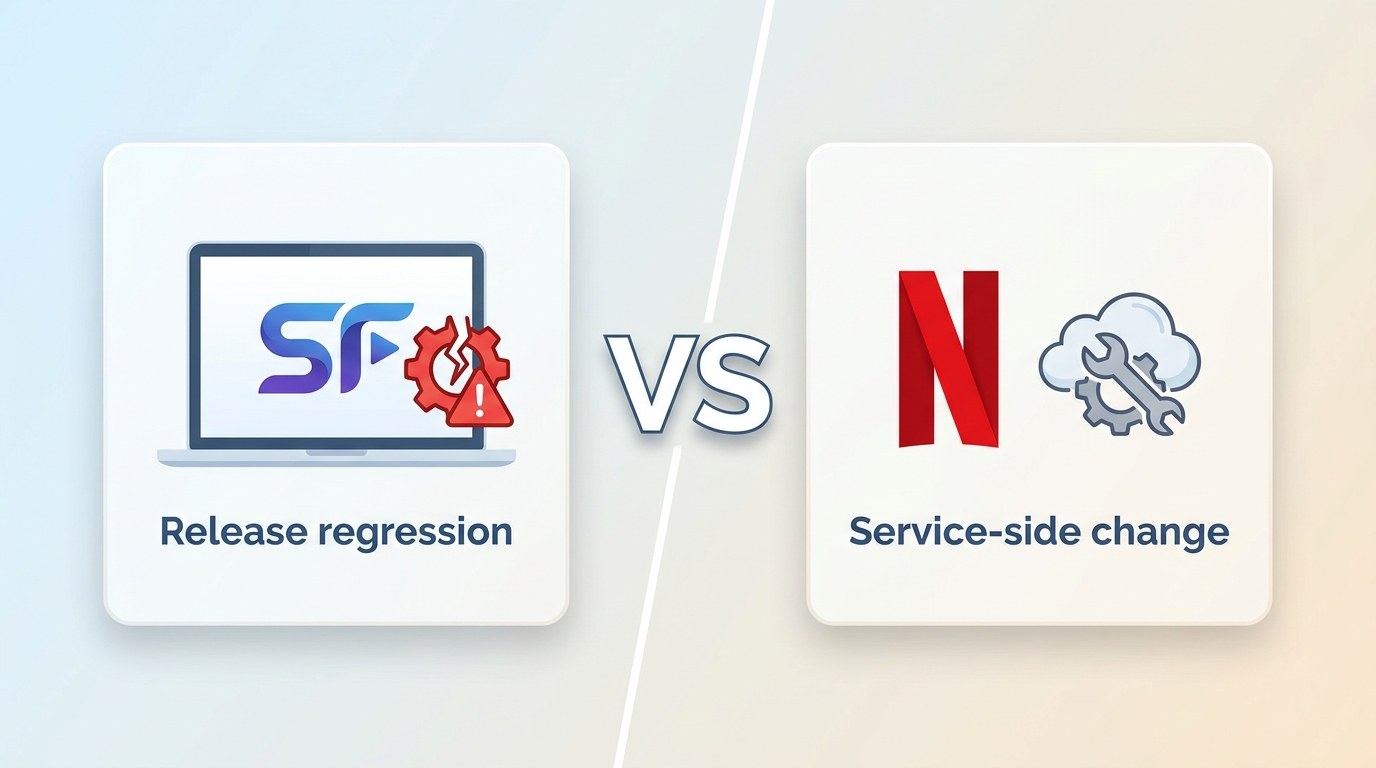
A rollback makes sense when the issue began with a specific StreamFab release and affects your local workflow. If several services show the same problem at once, or the service has changed its own systems, an older StreamFab version may not help. Check the release information and service-specific updates before changing the installation.
1. Compatibility issues after an update
Compatibility can change between consecutive releases, and the impact may be limited to one streaming service. Compare the affected service, the installed StreamFab version, and the latest release information before rolling back. If the release introduced the regression, an older StreamFab version may restore the earlier workflow; if the service changed its own systems, wait for a compatible update or contact support.
2. Feature changes or removals
Occasionally, an update changes the UI layout or removes a feature that power users rely on. While StreamFab typically adds features with each release, interface changes can disrupt established workflows.
3. Performance degradation
Some updates are heavier on system resources. If you're running StreamFab on an older machine, a newer version might introduce lag or crashes that weren't there before.
4. Plugin-specific regressions
Different streaming services can respond differently to the same StreamFab release. If only one service is affected, identify that service and check its current update information before assuming the whole installation needs a rollback. A previous build is worth considering only when the problem tracks back to the StreamFab release rather than to a service-side change.
Install an Older Version Side by Side
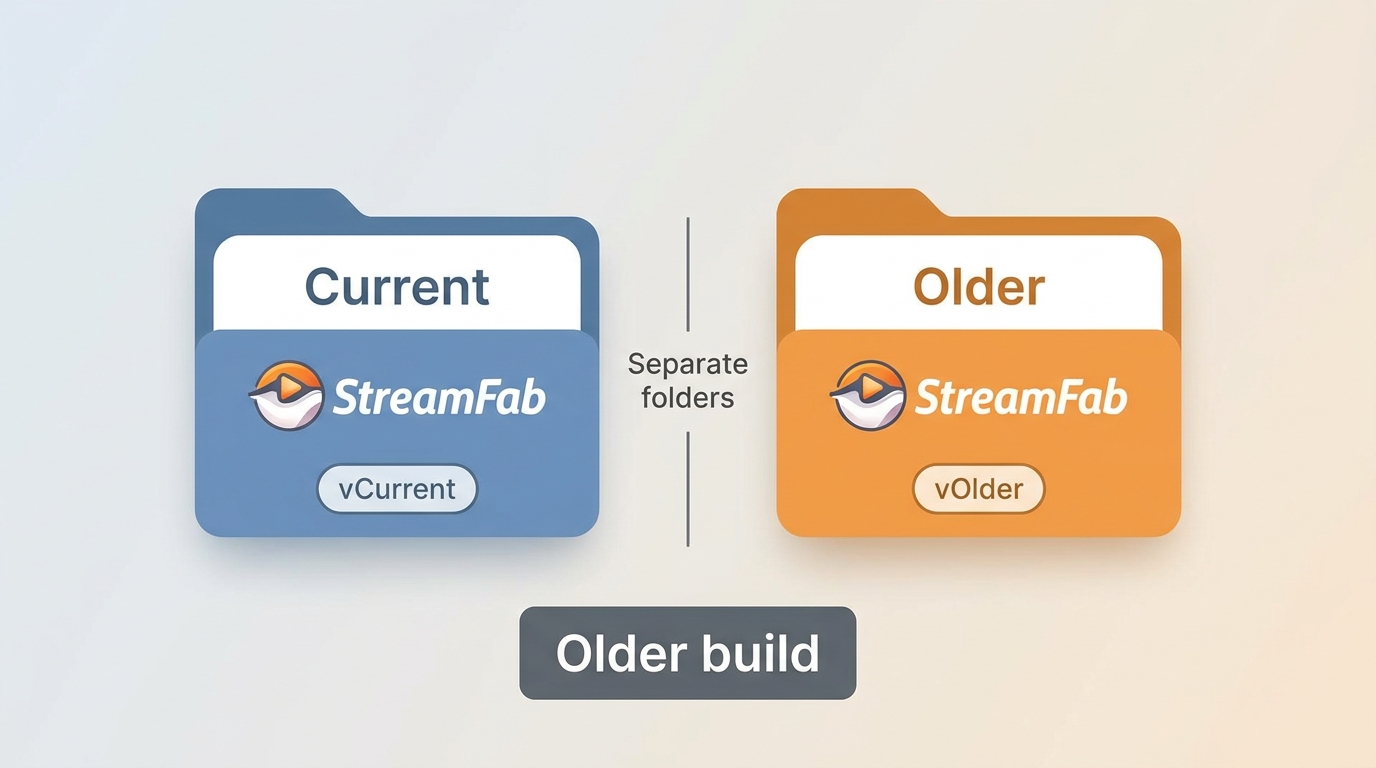
Side-by-side installation fits a system where the current StreamFab folder still opens and your settings are worth preserving. It keeps the existing folder in place while you install the older build separately, so you can switch between executables. It is not the right starting point for an installation that is already corrupted; use the clean-install checklist in Method 2 instead.
Rename your current StreamFab folder
Navigate to %ProgramFiles%\StreamFab (or your custom install location) and rename the folder to something version-specific, like StreamFab_6213. This keeps the current installation available. You can run it later by launching StreamFab.exe from the renamed folder.
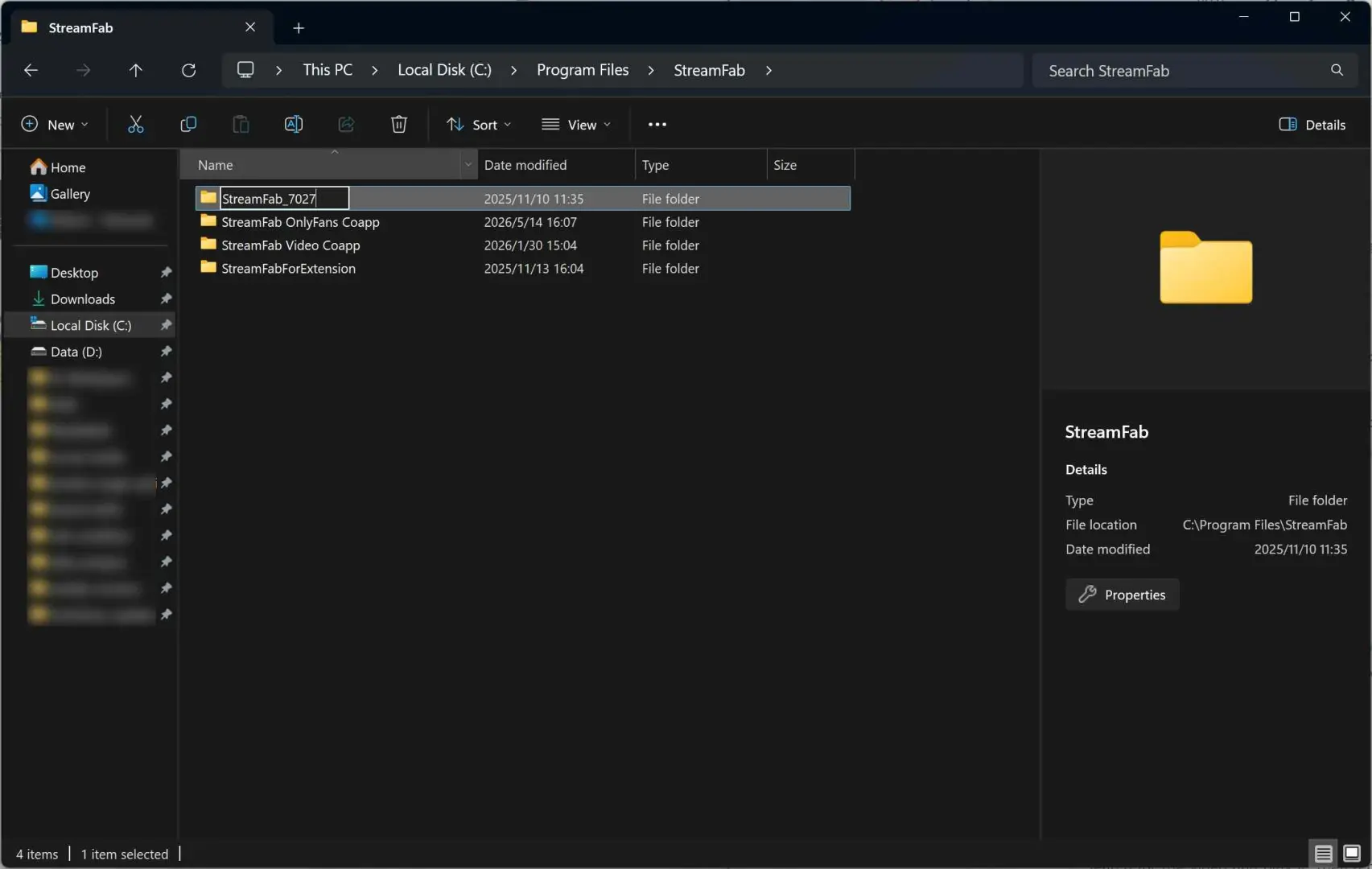
Download the offline installer for your desired version
Use an offline installer rather than the in-app updater. The current Download Center provides the current Windows package; a historical installer may be available through Extended Download Service or from a package you previously saved. Avoid unverified third-party archives.
Install the older version
Run the offline installer you downloaded. Uncheck "Create Desktop Shortcut" during installation to avoid confusion. The installer will create a fresh %ProgramFiles%\StreamFab folder with the older version.
Switch between versions as needed
To use the older version, launch StreamFab.exe from the newly installed %ProgramFiles%\StreamFab. To use your original version, create a shortcut to StreamFab.exe inside the renamed folder you created in Step 1. Both versions share the same settings file (StreamFab.ini). If the older build behaves unexpectedly, remove or back up the settings file and let it create a fresh one.
For future updates, rename the current folder before installing the new build. If the update causes a release-specific problem, the earlier executable remains available in the renamed folder. StreamFab_6213can be replaced with any clear folder name you choose.
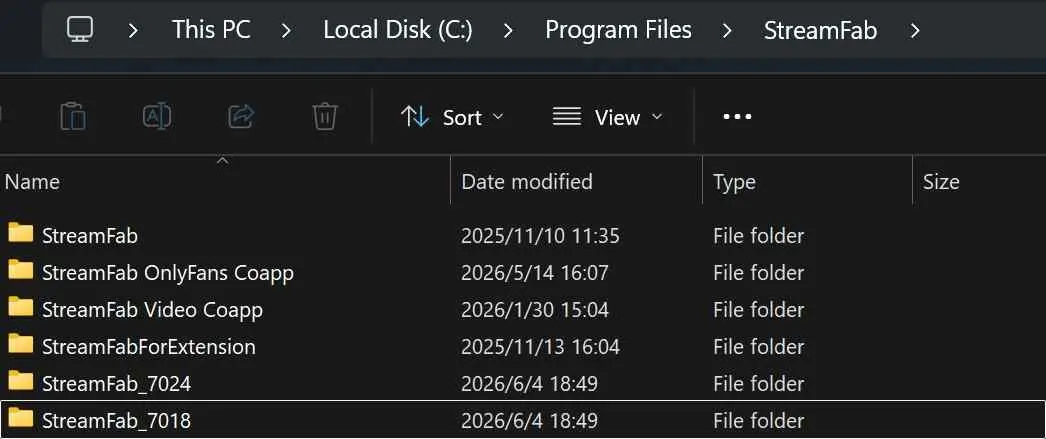
The built-in updater installs the latest version. A rollback requires an offline installer for the target build. The current Download Center exposes the current Windows package; historical installers may be available through Extended Download Service or a package you previously saved.
Clean Uninstall and Reinstall
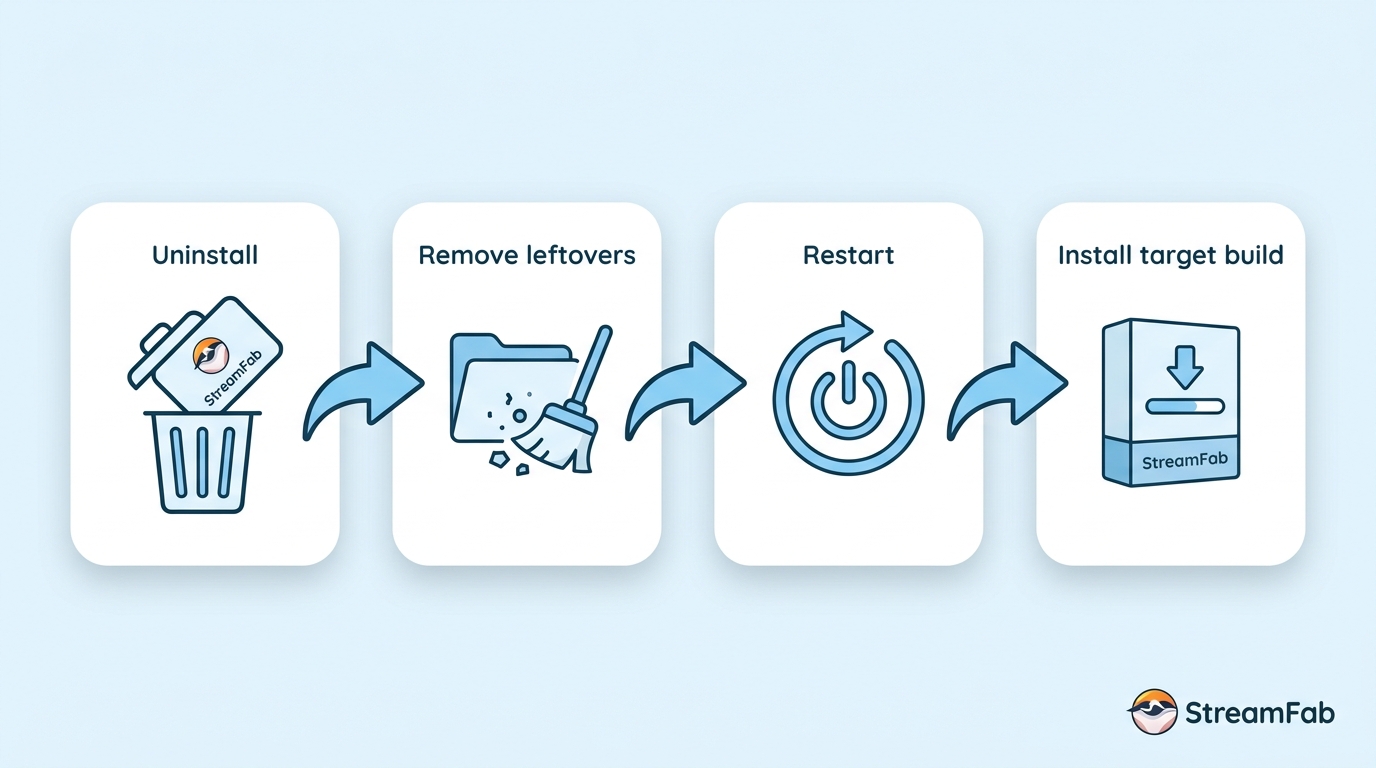
Use a clean install when the local StreamFab installation is damaged, such as repeated launch crashes, analysis failures, or persistent error codes. Back up your settings and task data first, uninstall StreamFab, remove only confirmed leftovers, restart the computer, and install the target build. The how to uninstall StreamFab guide covers the removal stage in more detail.
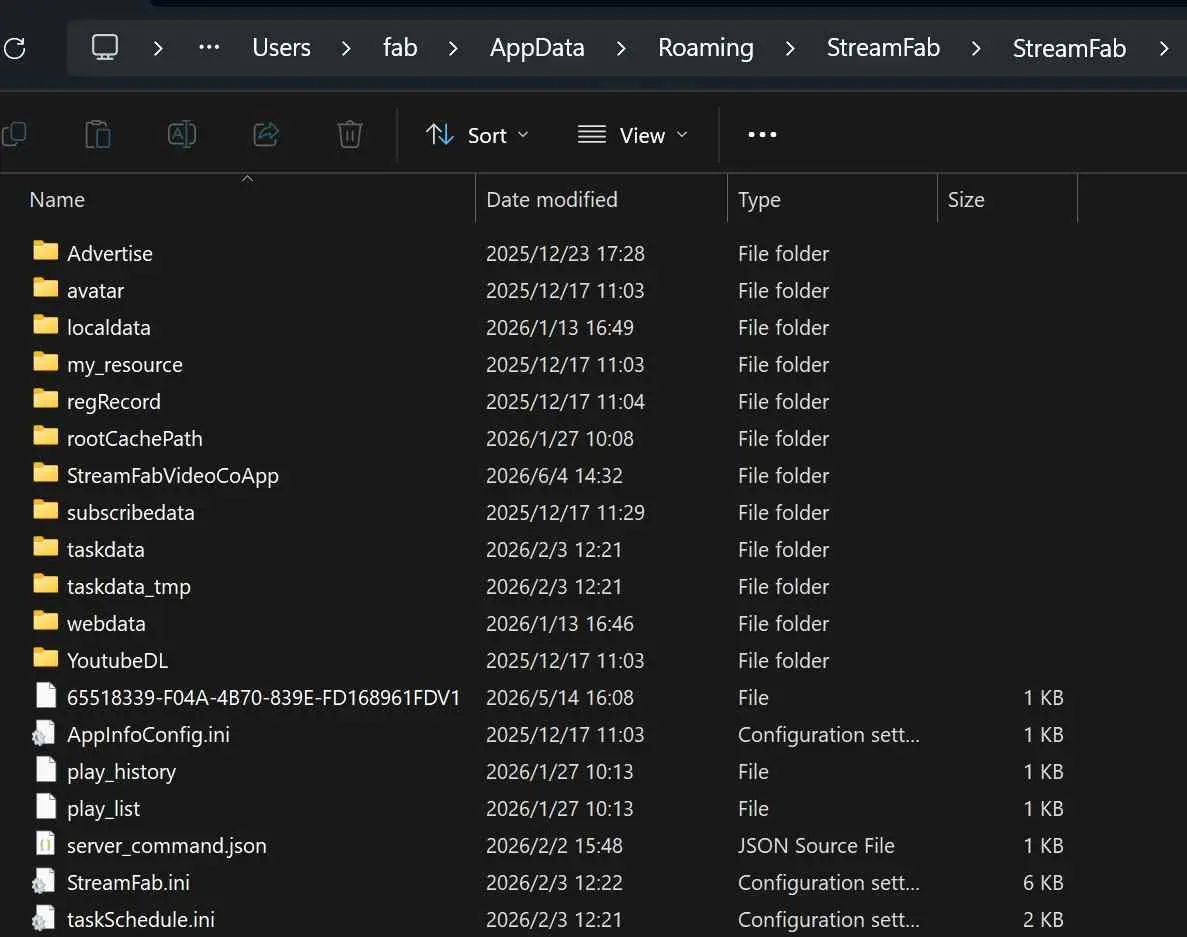
Back up your StreamFab settings and task data
Copy the relevant StreamFab data folder %USERPROFILE%\AppData\Roaming\StreamFab\StreamFab\ to a separate backup location. This gives you a copy of your settings and task data before removal. Keep StreamFab.iniwith the backup so you can restore compatible settings later.
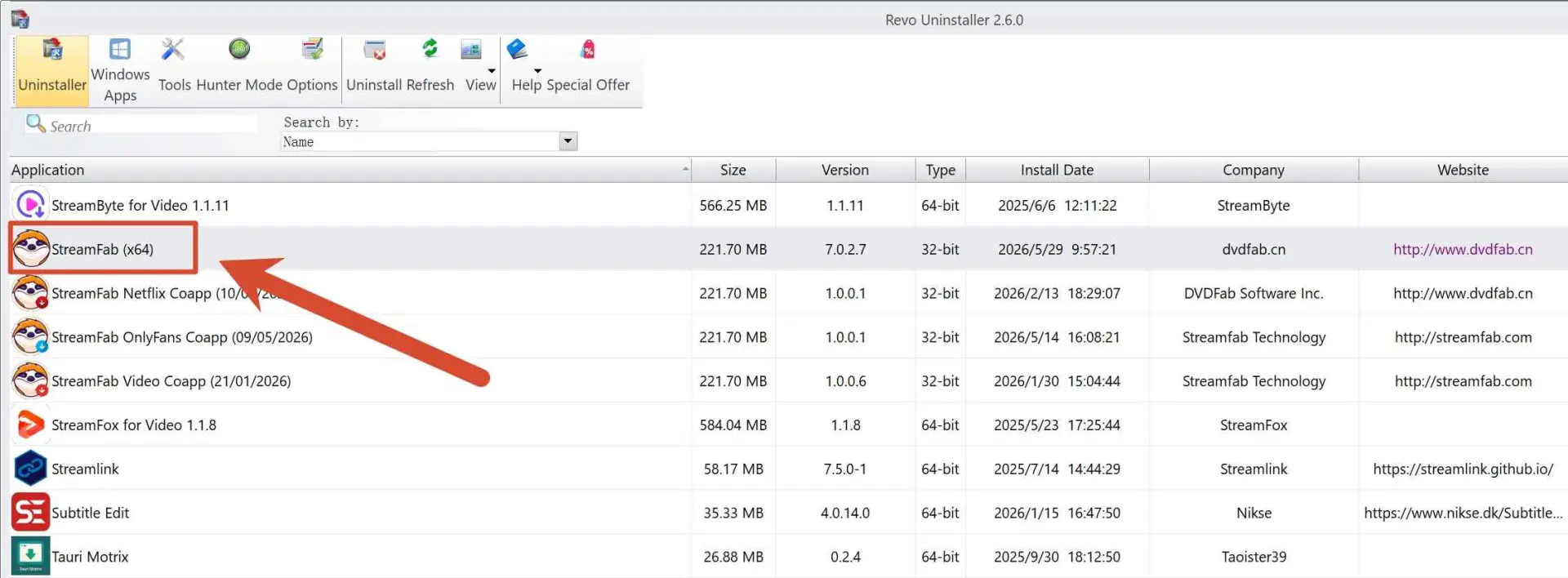
Uninstall StreamFab
Use Windows Apps settings or the official uninstall instructions to remove the current installation. Avoid deleting unrelated DVDFab data or registry entries manually. how to uninstall StreamFab before removing files. Confirm the target folders before deleting them. Do not remove data outside the StreamFab installation and profile locations.
Remove confirmed leftovers
After uninstalling, check only the locations associated with the installation:
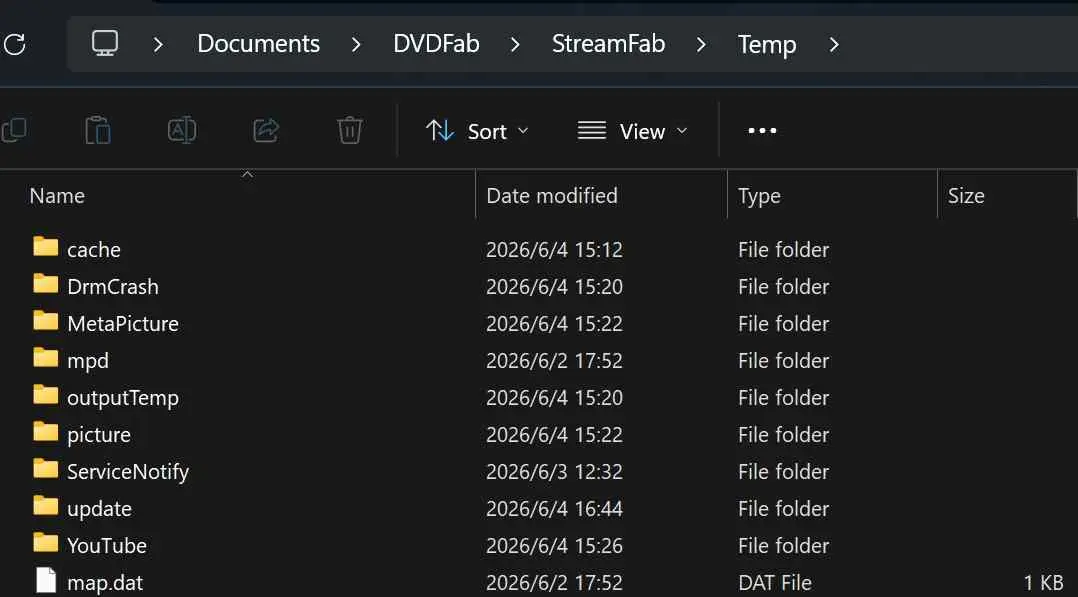
%ProgramFiles%\StreamFab%USERPROFILE%\AppData\Roaming\DVDFab\StreamFab%USERPROFILE%\Documents\DVDFab\StreamFab\Tempand remove confirmed leftover files.
Restart and install the target build
Restart your PC, run the offline installer for the target version, and sign in with your DVDFab account credentials. Reconfigure StreamFab from scratch, or restore the backed-up StreamFab.ini only if the older build can read those settings.
- ✅ Backed up StreamFab settings and
StreamFab.ini - ✅ Uninstalled StreamFab using Windows or the official instructions
- ✅ Removed only confirmed leftover folders
- ✅ Restarted the PC
- ✅ Used the installer option shown on the official Download Center
- ✅ Signed in with a DVDFab account and reconfigured settings
Method 3: Quick Temp File Reset (Fastest First Aid)
Before committing to a full downgrade, try this non-destructive step when update residue or cache corruption is suspected. Deleting temporary files does not change the installed StreamFab version. If the problem remains, compare the affected service and release information before choosing a rollback.
%USERPROFILE%\Documents\DVDFab\StreamFab\Temp.cache subfolder (if you want to keep your saved login sessions and cookies).This reset is worth trying for update-related residue or cache corruption. If StreamFab still fails afterward, check whether the issue is limited to one service and review the current release information before proceeding to Method 1 or Method 2.
Checks Before You Downgrade
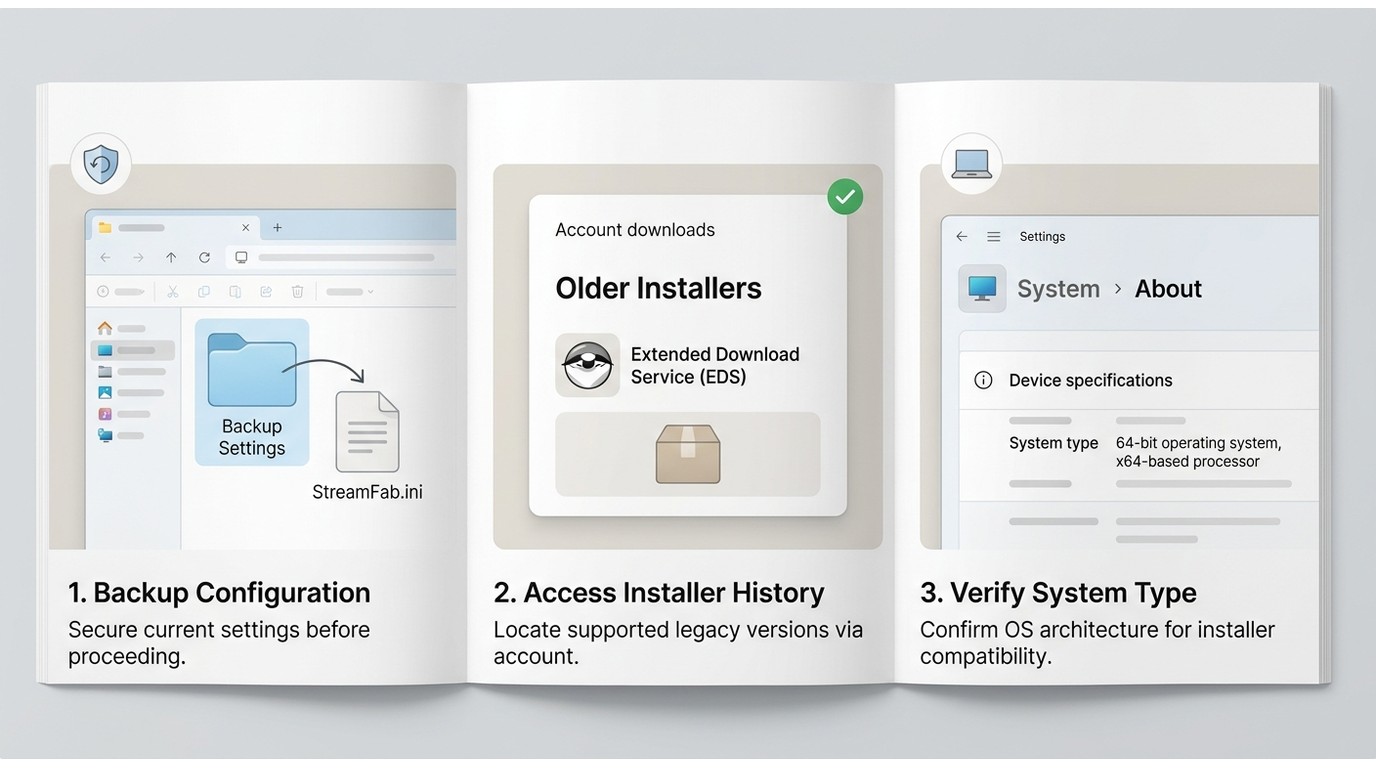
Before you downgrade StreamFab, confirm the affected service, compare the installed version with the current release information, and back up your settings and task data. These checks help separate a local installation problem from a service-side change.
1. Settings compatibility
Newer StreamFab versions sometimes introduce settings or data structures that older versions can't read. If you've been using a recent version for a while and then install an old one, your StreamFab.ini might be in a format the older version doesn't understand. When this happens, the old version may crash or behave unexpectedly. The safest approach: back up your StreamFab.ini before downgrading, and if the old version has issues, delete the file and let it create a fresh one.
2. Offline installer is mandatory
Use the installer route described above. The current Download Center primarily shows the current Windows offline package, while a historical installer may be available through Extended Download Service or a package you previously saved. The official StreamFab download page explains the current installation workflow; do not assume that a separate 32-bit historical package is available.
3. Account authorization
After installing an older version, sign in with the DVDFab account connected to your purchase. Extended Download Service may provide access to historical installers through the account's My Downloads area.
4. 64-bit vs. 32-bit
Use the supported operating system and installer option shown on the official Download Center when you download. Do not assume that a separate 32-bit historical package is available. If you are checking a Windows system type, open Settings → System → About → System type.
If the Problem Continues
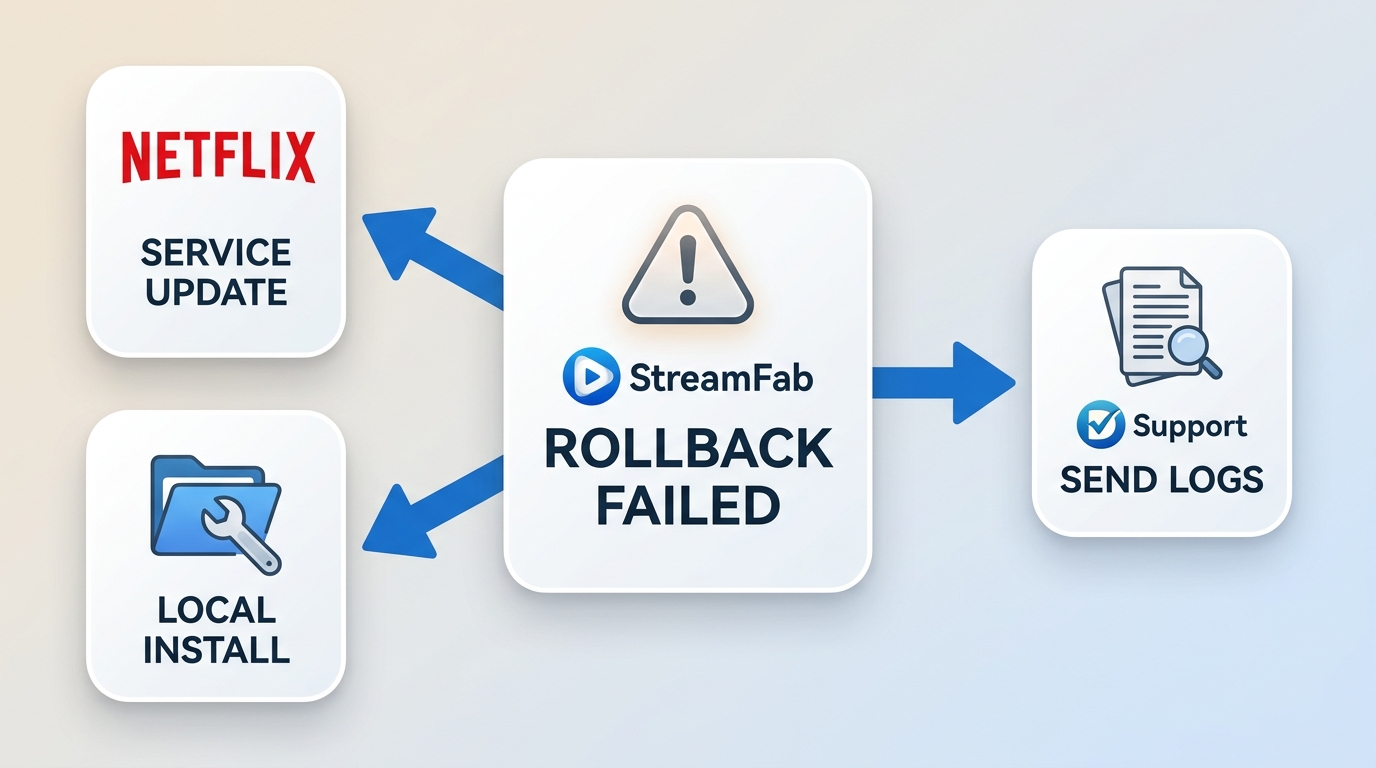
If a rollback does not resolve the issue, determine whether the affected service changed its own systems or whether the local installation remains damaged. Check the service-specific update information first. When local troubleshooting fails, submit the relevant logs through official support; the StreamFab log file location guide explains where to find them.
| Check whether the problem is local or service-side | A streaming service may change its systems independently of StreamFab. Check the official website StreamFab update information DVDFab forum and the affected service before choosing another build. |
| Follow the current troubleshooting path | Use the troubleshooting steps for launch, analysis, and download errors before reinstalling. If the issue began with a specific release, compare that release with the current update information. |
| Contact official support when local fixes fail | If the problem persists, submit the StreamFab log file. |
| and the relevant error details through official support. | Include the affected service, installed version, and steps that reproduce the problem. |
Frequently Asked Questions
Where can I get an older StreamFab installer?
The current Download Center primarily provides the current Windows offline package. A historical installer may be available through Extended Download Service or from a package you previously saved. Avoid unverified third-party archives.
Do I need Extended Download Service to roll back StreamFab?
Not necessarily. Extended Download Service may provide historical installers through your account, while a previously saved installer is another legitimate route. Availability depends on your account and the current offering.
Will an older StreamFab version still work with current streaming-service changes?
Not necessarily. A service-side change or a support cutoff can make an older build unsuitable. Check the affected service and StreamFab update information first; contact official support if the issue continues.
Will downgrading remove my StreamFab settings?
Side-by-side installation leaves the existing folder available. A clean uninstall can remove local settings and task data, so back up StreamFab.ini and the relevant StreamFab data folder before uninstalling.
Conclusion
A StreamFab rollback is most useful when the problem follows a specific release rather than a streaming-service change. My preferred order is to verify the issue first, try the temporary-file reset, use side-by-side installation to preserve a working folder, and reserve a clean uninstall for a genuinely damaged local installation.
Start with Method 3 when update residue or cache corruption is suspected. If the issue remains tied to the current StreamFab release, use Method 1 (side-by-side) with an available offline installer. Choose Method 2 (clean uninstall) when the local installation itself is damaged or the earlier methods do not restore normal operation.
Use StreamFab with an authorized account and authorized content for personal access only. Do not redistribute saved files, follow applicable law and the streaming service's terms, and remember that the conditions for saved files depend on the specific service and use case. When downgrading, use the appropriate offline installer and keep a backup of any installer that you are authorized to use.

StreamFab All-In-One covers 1,000+ streaming services, including Netflix, Amazon Prime, Disney+, HBO Max, and more.