Table of contents
If your search for StreamFab for Linux started because you need a dependable offline workflow, the key fact is simple: there is no official native Linux app. Running StreamFab on Linux means evaluating three conditional workarounds, or choosing a native tool for supported public sources.
This guide separates the choices by support status, setup cost, source fit, and a clear stop condition. The practical conclusion is to treat Windows or macOS as the supported baseline and Linux compatibility layers as tests, not promises.

Can StreamFab Run on Linux?
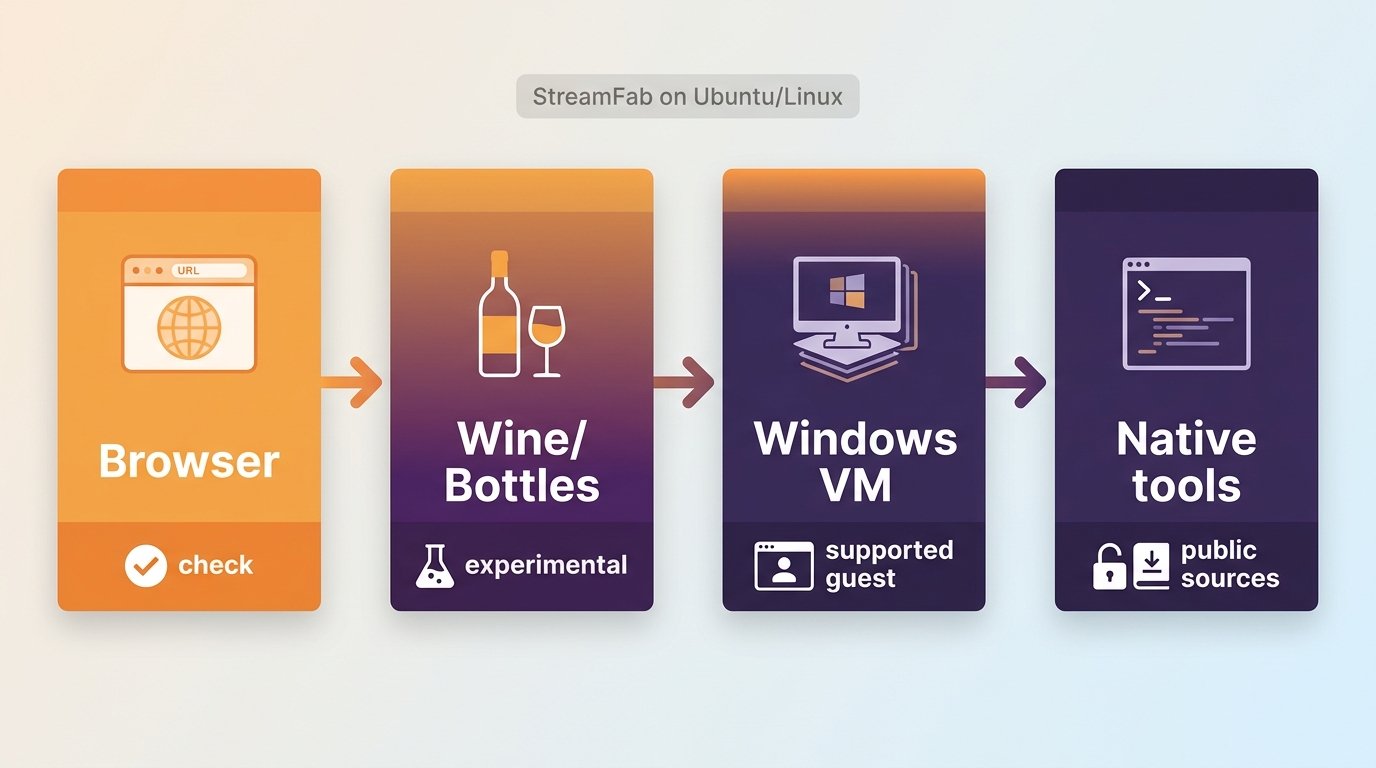
StreamFab Linux support does not include an official native build. The three product-oriented routes are a browser support check, an experimental Wine/Bottles test, and a Windows VM; a native Linux downloader is a separate alternative for compatible public sources.
- Browser support check: Windows support is documented; Linux support is not established.
- Wine or Bottles: Experimental test; UI, login, and output remain configuration-dependent.
- Windows VM: More controlled than Wine; native Linux tools suit supported public sources.
For personal offline viewing of content you are authorized to access, where permitted by platform terms and applicable law, StreamFab All-In-One on Windows and Mac can save local MP4/MKV files with audio and subtitle selection plus batch handling.
The full StreamFab review covers supported-system features in depth; here, the narrower decision is whether a Linux-first workflow is worth the added friction.
Why Linux Has No Native StreamFab App
The current support material documents Windows and macOS desktop builds, but no native Linux app. Linux distributions also differ in packaging, graphics stacks, and desktop components, so a compatibility layer should not be treated as equivalent to an officially supported operating system.
The normal supported workflow described in the StreamFab usage guide is the baseline I use when judging whether a compatibility layer has reproduced expected behavior. For predictable daily use, I would begin with a supported operating system.
- Windows: Supported desktop environment
- macOS: Supported desktop environment
- Android: Separate mobile product, not the desktop Linux route
- iOS: No supported StreamFab desktop build
- Linux: No official native build documented
Native Linux Downloaders Fit Different Jobs
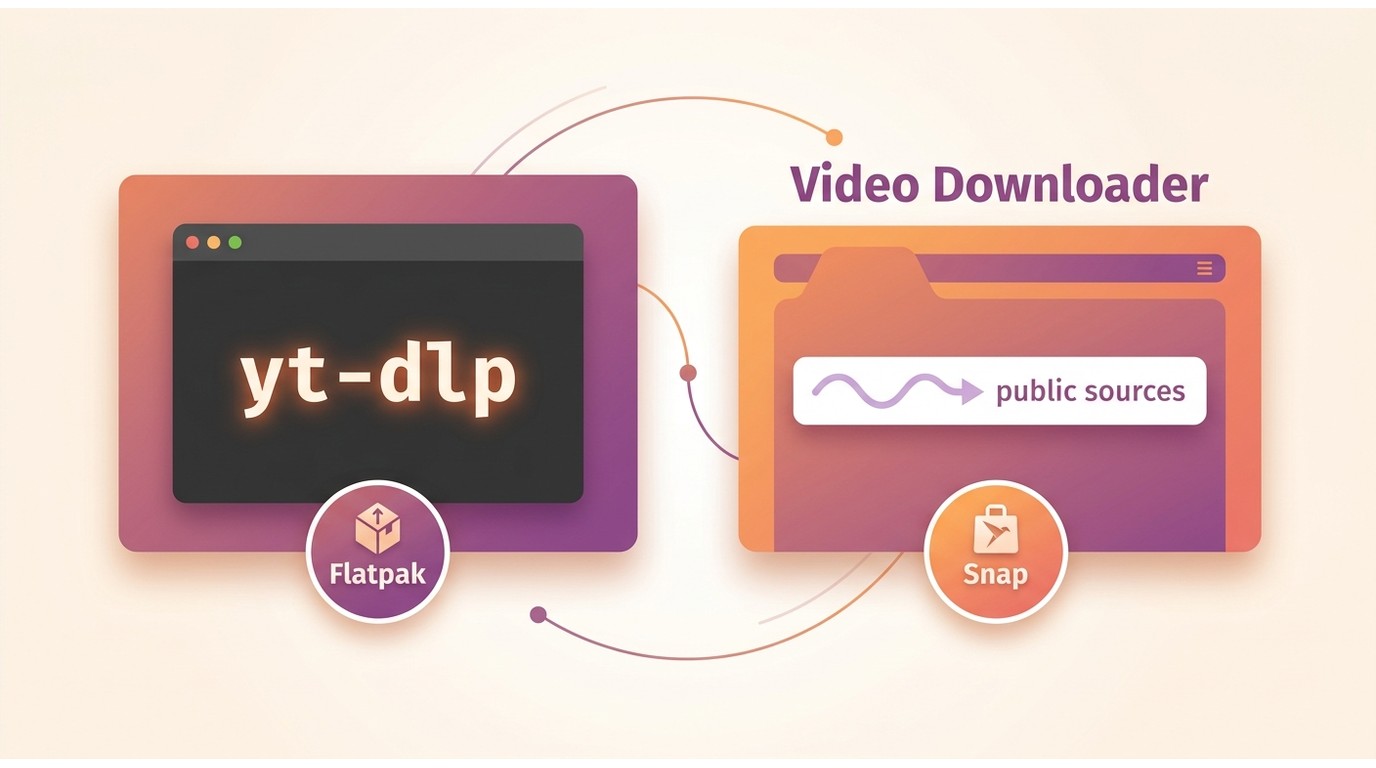
A native Linux downloader avoids compatibility layers, but the right choice depends on the source. CLI tools, GUI apps, Flatpak packages, and Snap packages are useful for supported public media; they are not substitutes for every protected subscription-service workflow.
Choose a CLI or GUI
- yt-dlp: A command-line Linux video downloader for supported public sources, with the yt-dlp guide covering commands and format selection for deeper CLI use.
- Video Downloader: A native GUI that suits readers who prefer pasting a supported public URL instead of managing command options.
- Snap-distributed apps: A convenient package path when a maintained app has a clear publisher page and supports the source you need.
If you are searching for a StreamFab open source alternative, first ask whether the source is a supported public page. A familiar interface or install method does not make two tools equivalent for protected services.
Install Through Linux-Native Packages
For an Ubuntu video downloader, a documented package source is easier to audit and update than a random installer. Flatpak provides one concrete path for the Video Downloader GUI:
- Install Flatpak through your distribution's package manager and add the Flathub repository.
- Run flatpak install flathub com.github.unrud.VideoDownloader.
- Launch Video Downloader, then test one public source the app explicitly supports.
- Flatpak: Useful when you want the same package ID across Ubuntu, Fedora, and other supported distributions.
- Snap: Check the publisher and confinement details in the Snap Store, then run the exact sudo snap install PACKAGE_NAME command shown on that app's listing.
My preference is a maintained package with a clear upstream and recent release history, not whichever install command is shortest. The practical fit still comes down to source support.
Method 1: Check Browser Support
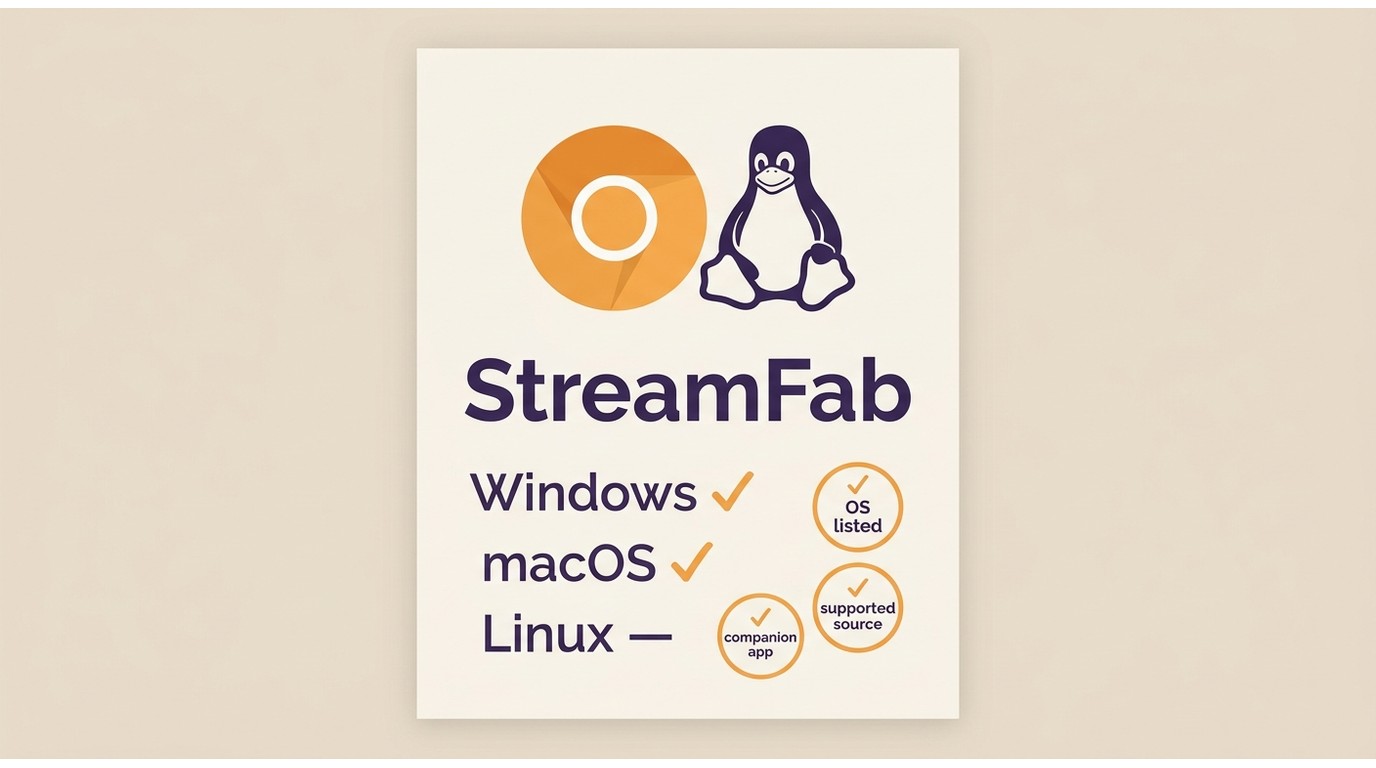
StreamFab browser support should be checked before any Linux installation attempt. Current official documentation lists Windows support, and a Chromium browser on Linux does not by itself establish product compatibility.
I treat this route as a support check, not as instructions to install the extension on Linux. Browser availability and product support are separate facts, even when the browser itself runs perfectly.
Open Chrome or Edge on your Linux machine
Navigate to the Chrome Web Store or the StreamFab Browser Extension product page.
Search for "StreamFab Browser Extension" and click "Add to Chrome"
The extension installs like any other Chrome extension, no Wine or compatibility layer needed.
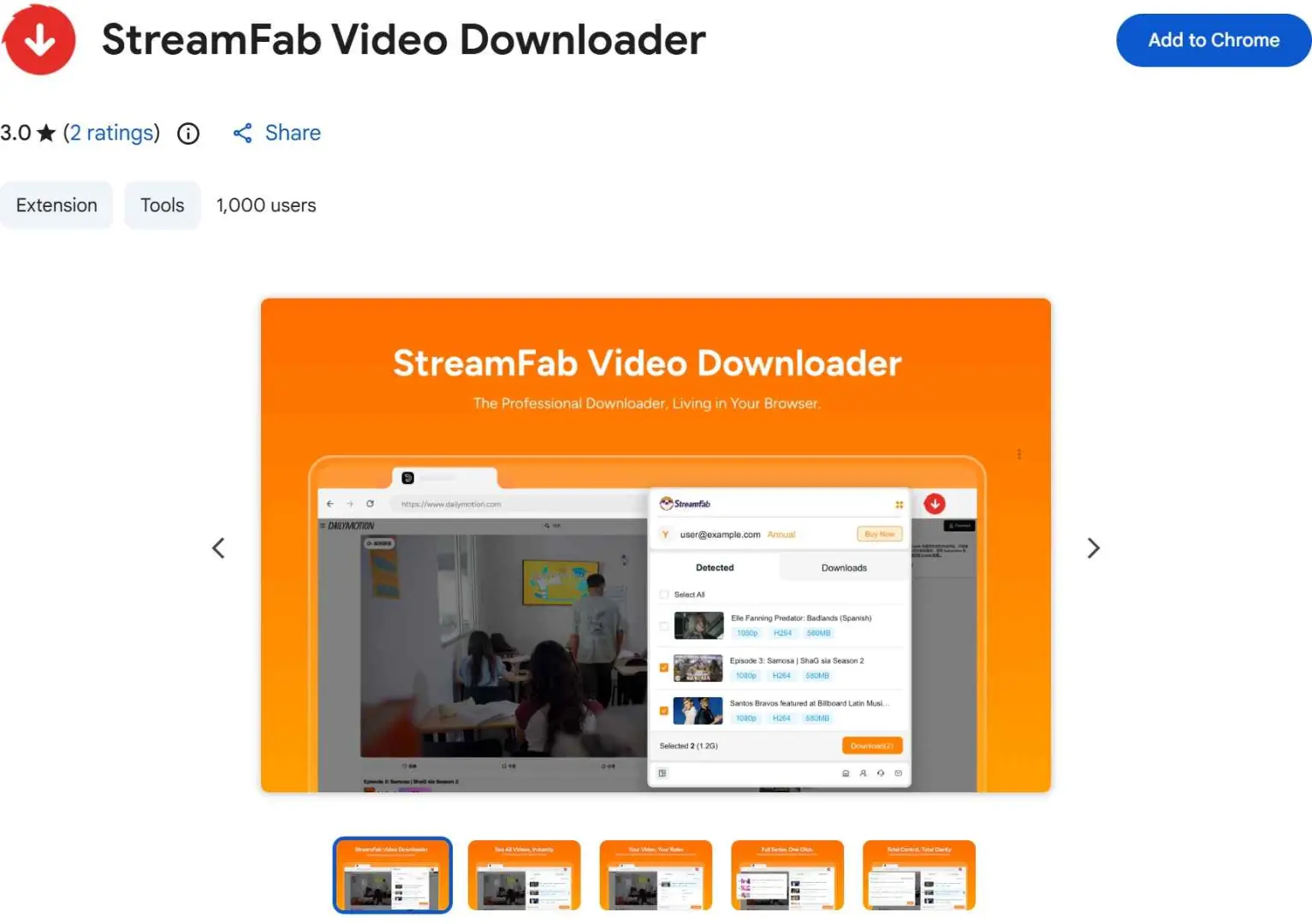
Navigate to a supported streaming site and start playback
The extension icon will activate when it detects downloadable content. Click it to select quality and start saving.
Choose your output format and download location
Select MP4 output and a local folder. The file saves directly to your Linux filesystem.
- Official product documentation lists Windows support
- Chromium availability on Linux does not establish extension support
- Local companion-app and source requirements can affect operation
- Treat this as a documentation check, not an installation route
Method 2: Try Wine or Bottles
- Best for: experimenters who can limit the test and accept that it may end early.
- Not ideal for: dependable daily use or anyone who needs a supported Linux application.
Wine or Bottles can be useful for a short compatibility test, but installation success is not evidence that the UI, embedded login, or a download will complete. Treat the Wine StreamFab setup and Bottles StreamFab setup as experimental.
In my Windows 10 Pro baseline on an i5-9400F with 16 GB RAM and StreamFab 7.0.1.7, a three-episode batch completed and file sizes rose with episode length. That result describes the supported Windows environment; it does not establish Wine behavior.
Install Wine or Bottles from your distribution's package manager
On Ubuntu/Debian: sudo apt install wine. On Fedora: sudo dnf install wine. For Bottles, install via Flatpak: flatpak install flathub com.usebottles.bottles.
Download the StreamFab Windows installer (.exe) from the official site
Get the standard Windows x64 installer from the StreamFab installation page.
Run the installer through Wine
Right-click the .exe file and select "Open with Wine" or run "wine streamfab_setup.exe" in the terminal.
Launch StreamFab and sign in to your streaming accounts
The UI should appear and function normally. Test a short download before committing to longer sessions.
- A completed installer does not establish that the main window will remain open
- Embedded sign-in can fail independently of installation
- Output may stall or become unusable under an incompatible configuration
- If the same blocker returns after one clean test, stop and switch routes
Method 3: Use a Windows VM
- Best for: users who already maintain a licensed Windows VM and can test before investing more time.
- Not ideal for: low-resource machines or readers seeking a native Linux workflow.
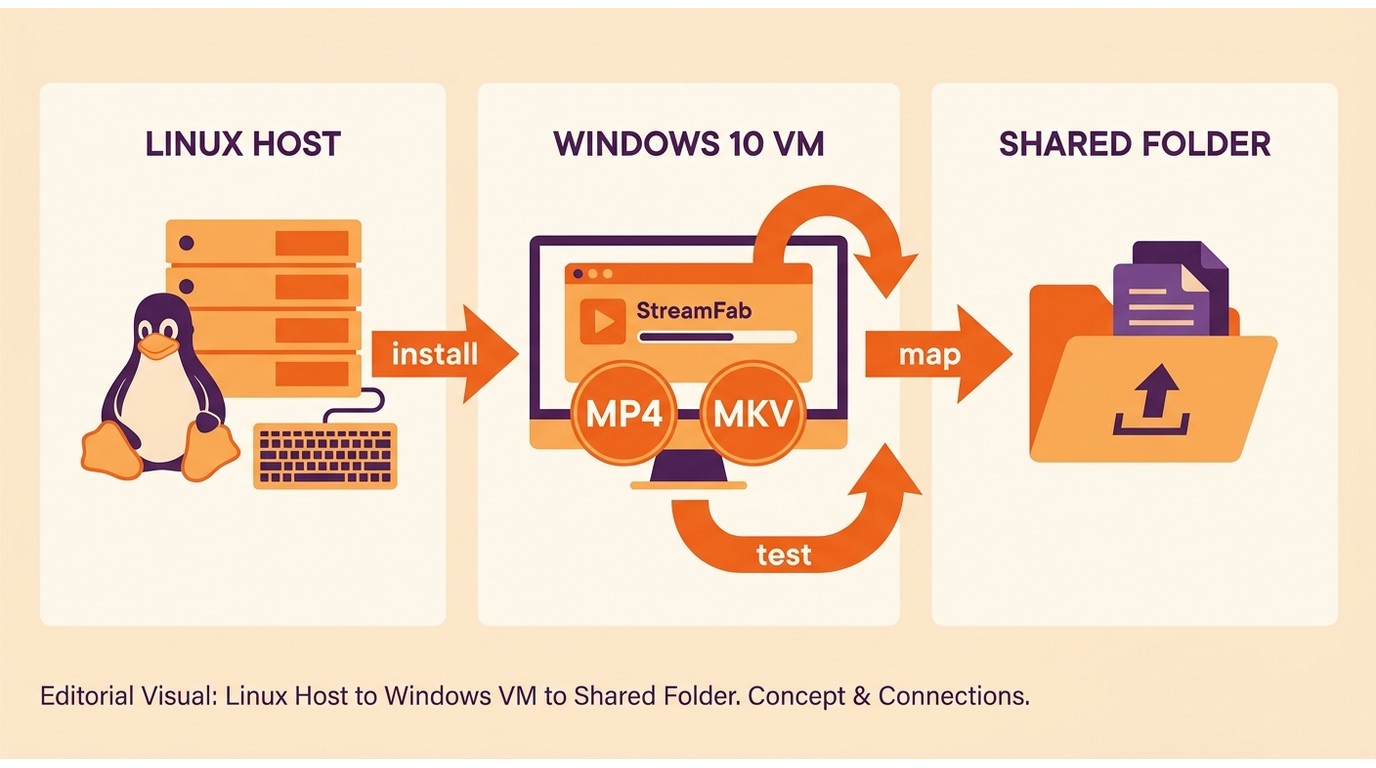
A Windows VM on Linux provides a supported guest operating system and a more controlled environment than Wine, but startup, authentication, and output still depend on the VM configuration. It is not a native Linux workflow.
Install VirtualBox or VMware Workstation Player on your Linux host
On Ubuntu: sudo apt install virtualbox. VMware Workstation Player is free for personal use.
Create a Windows 10 or 11 virtual machine
Allocate at least 4 GB RAM (8 GB recommended), 2 CPU cores, and 50+ GB disk space. Enable VT-x/AMD-V in your BIOS if not already active.
Install Windows and then install StreamFab normally inside the VM
Follow the standard StreamFab installation process as you would on any Windows machine.
Configure a shared folder to access downloaded files from Linux
In VirtualBox, set up a shared folder pointing to a directory on your Linux host. This lets you access saved videos directly from your Linux desktop without manually transferring files.
- Guest system: Use a licensed, supported Windows installation
- Resources: Allocate enough CPU, memory, and storage for Windows plus output files
- File access: Configure a shared folder after the guest starts and authenticates correctly
- Decision point: Test startup, login, and one authorized source before committing to the workflow
Know the Protected-Service Boundary
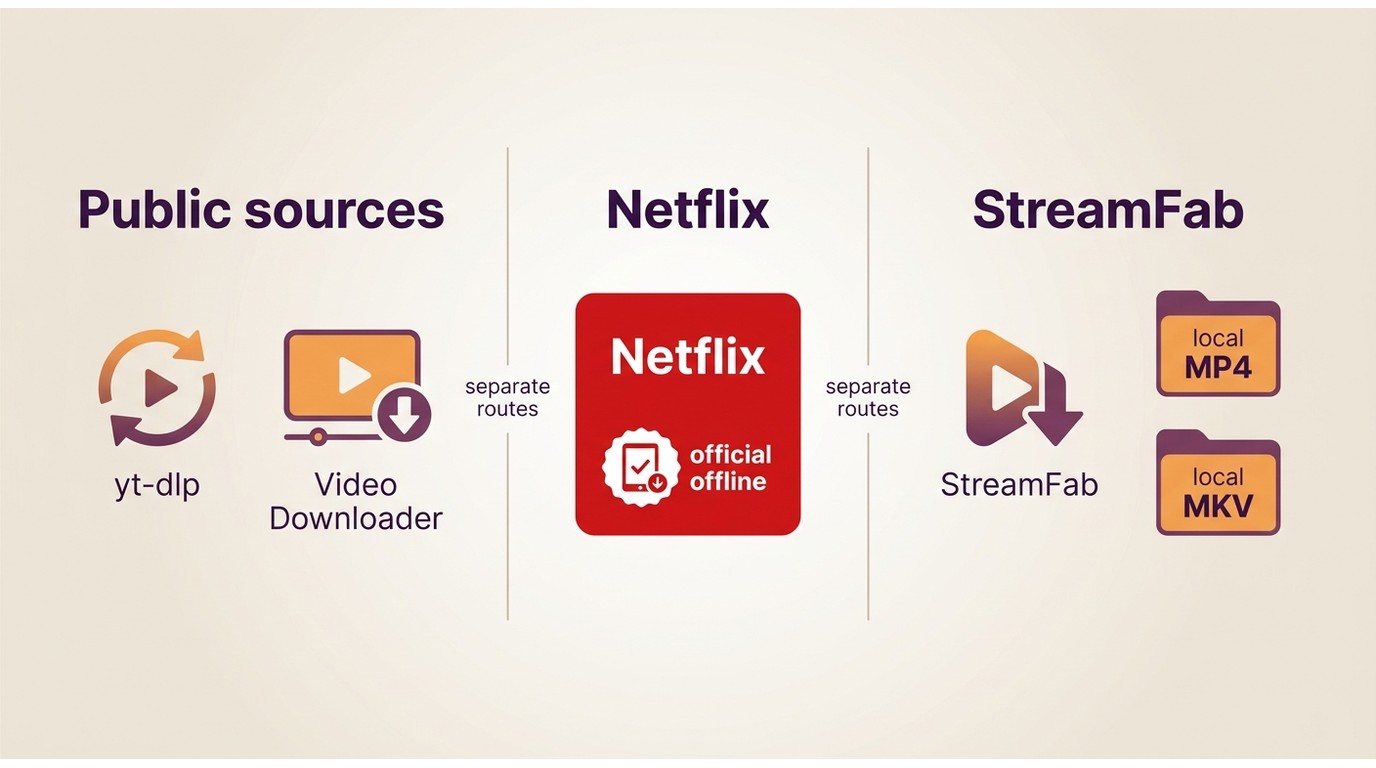
Netflix downloads on Linux are constrained by the service's official offline-device support, and Linux is not listed as an offline-download device. Public-site tools and protected subscription services therefore need different workflows and expectations.
For content you are authorized to access, where permitted by platform terms and applicable law, and with an active platform subscription where required, a desktop workflow may save a local copy for personal offline viewing when official downloads are unavailable.
An official app download remains managed by the platform and is not the same thing as a local MP4/MKV file. The question “Is StreamFab safe?” depends on source authorization, account status, intended use, and local rules rather than a blanket label.
Stop When a Workaround Fails
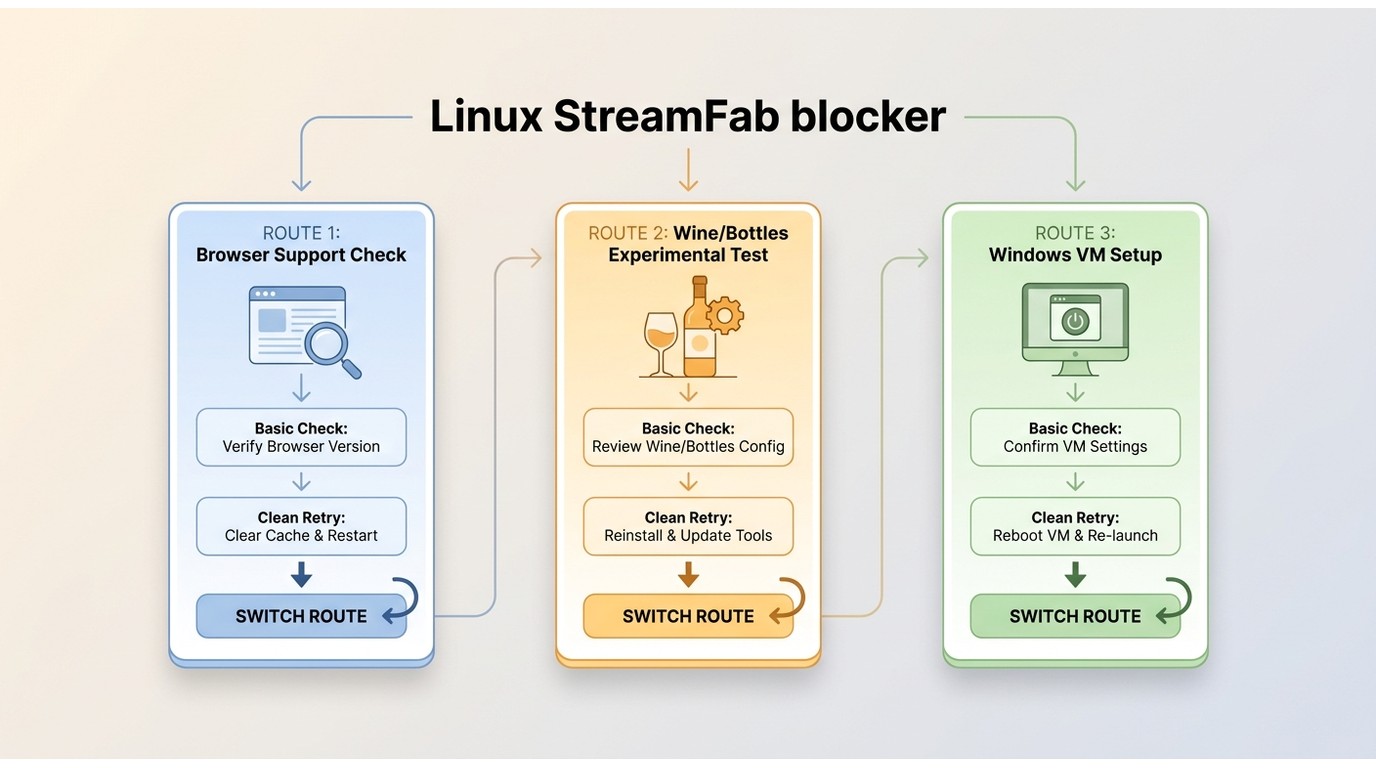
StreamFab Linux troubleshooting is most useful when it ends with a decision. If the same blocker persists after one basic check, stop tuning the current route and switch; repeated configuration changes can consume hours without changing the support boundary.
- Browser support mismatch: The product page does not list Linux or requires a local component. Check the documented operating systems once; stop if Linux remains undocumented.
- Wine/Bottles UI crash: The installer completes, but the main window closes or never renders. Try one clean prefix; stop if the failure repeats.
- Embedded-login hang: Sign-in never completes after the UI opens. Confirm the guest clock, network, and account login in a normal browser; stop if the embedded flow still hangs.
- VM no-start: The guest works, but StreamFab produces no usable window. Finish Windows updates and restart once; stop if a clean reinstall returns the same result.
- Stalled or unusable output: One authorized test does not finish correctly. Test the guest's local disk before a shared folder; stop if the same source fails again.
A broader StreamFab not working checklist can help separate account, network, and application failures before you decide whether Linux is the differentiator. My stop line is simple: one basic check, one clean retry, then a route change.
Which Linux Route Fits Your Needs?
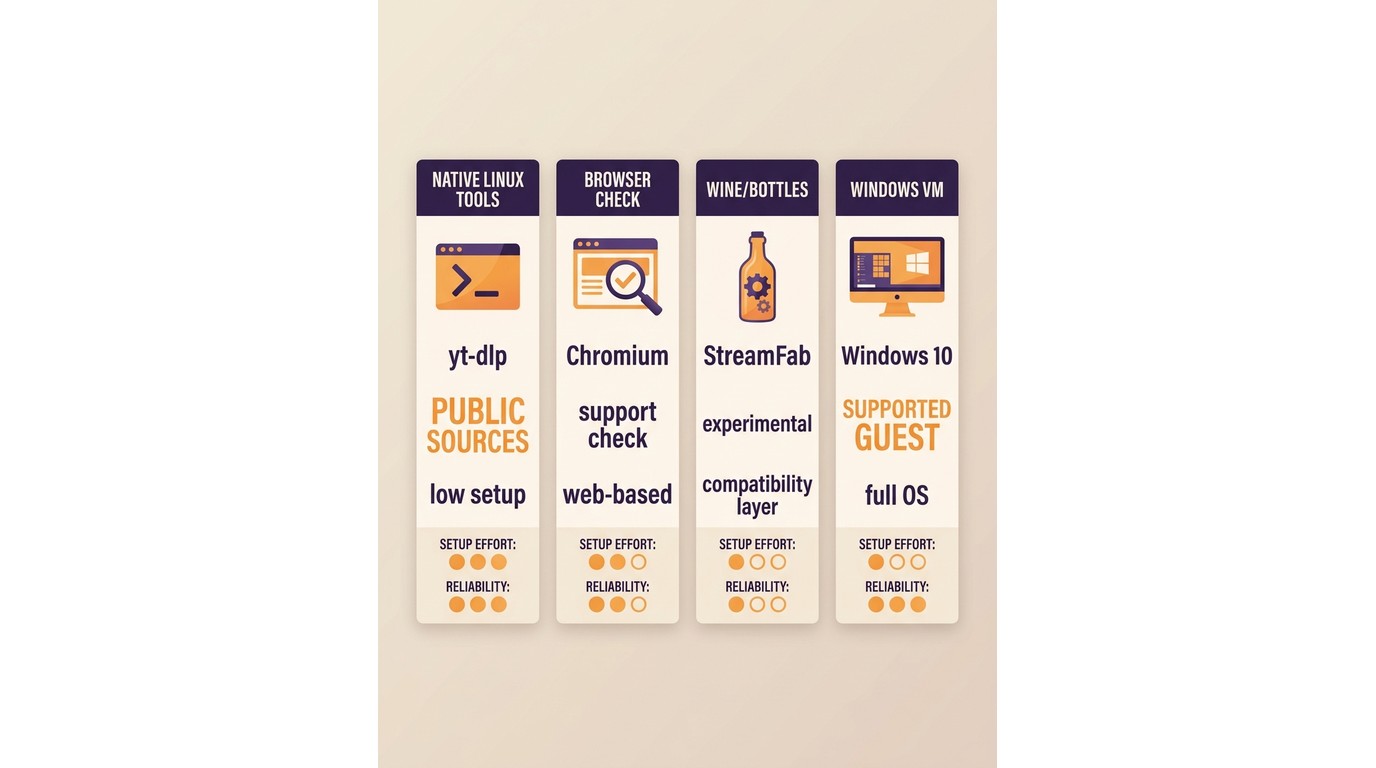
There are three ways to test StreamFab around Linux's missing native build: browser availability, Wine/Bottles, and a Windows VM. Native Linux tools form a separate route for compatible public sources.
| Route | Native on Linux | Setup effort | Source fit | Reliability |
|---|---|---|---|---|
| Native Linux tools | Yes | Low to moderate | Supported public sources | Tool and source dependent |
| Browser availability | No confirmed route | Low check | Standard public streams | Support dependent |
| Wine / Bottles | No | Moderate | Experimental app compatibility | Configuration dependent |
| Windows VM | No; Windows guest | High | Supported StreamFab sources | More controlled; still dependent |
My practical order is source-first: use native Linux tools for supported public media, run a short compatibility test only if you accept failure, and use a Windows VM when you already maintain one and can test startup and authentication.
FAQ
Conclusion: The Practical Linux Solutions
Readers who require a native Linux application should not choose StreamFab for that requirement. For supported public sources, a Linux-native tool is the cleaner fit; for StreamFab compatibility, test a supported Windows or macOS environment before committing to the workflow.
For authorized personal offline viewing on supported sources, StreamFab All-In-One can output MP4/MKV files, retain multiple audio and subtitle options, and handle batches. It is not a fit for readers who need native Linux packaging or zero-maintenance compatibility.

Covers Netflix, Amazon Prime Video, Disney+, YouTube, and 1,000+ streaming services in a single tool. Check the official site for the latest supported services and pricing.
- As of September 2026, pricing varies by plan; the 30-day trial allows three downloads per service for compatibility checks.
- Keep use within authorized personal offline viewing, platform terms, and applicable law.
- For predictable daily use, begin with a supported operating system or a Linux-native tool for supported public sources.