
If you searched for Disney Plus to MP4, the missing piece is usually portability: Disney+ can save titles inside its mobile app, but it does not export a normal MP4 to a Windows or Mac folder. This article, "Convert Disney Plus to MP4 Guide: 4 PC Methods," compares four workflows, the settings that matter, and the fixes worth trying when detection or playback fails.
My practical rule is to choose the workflow before comparing specifications. A direct local-file tool suits a library or recurring episodes; a recorder makes more sense for an occasional clip. That distinction prevents a simple task from turning into a much larger software purchase.
Official Downloads vs Local MP4 Files
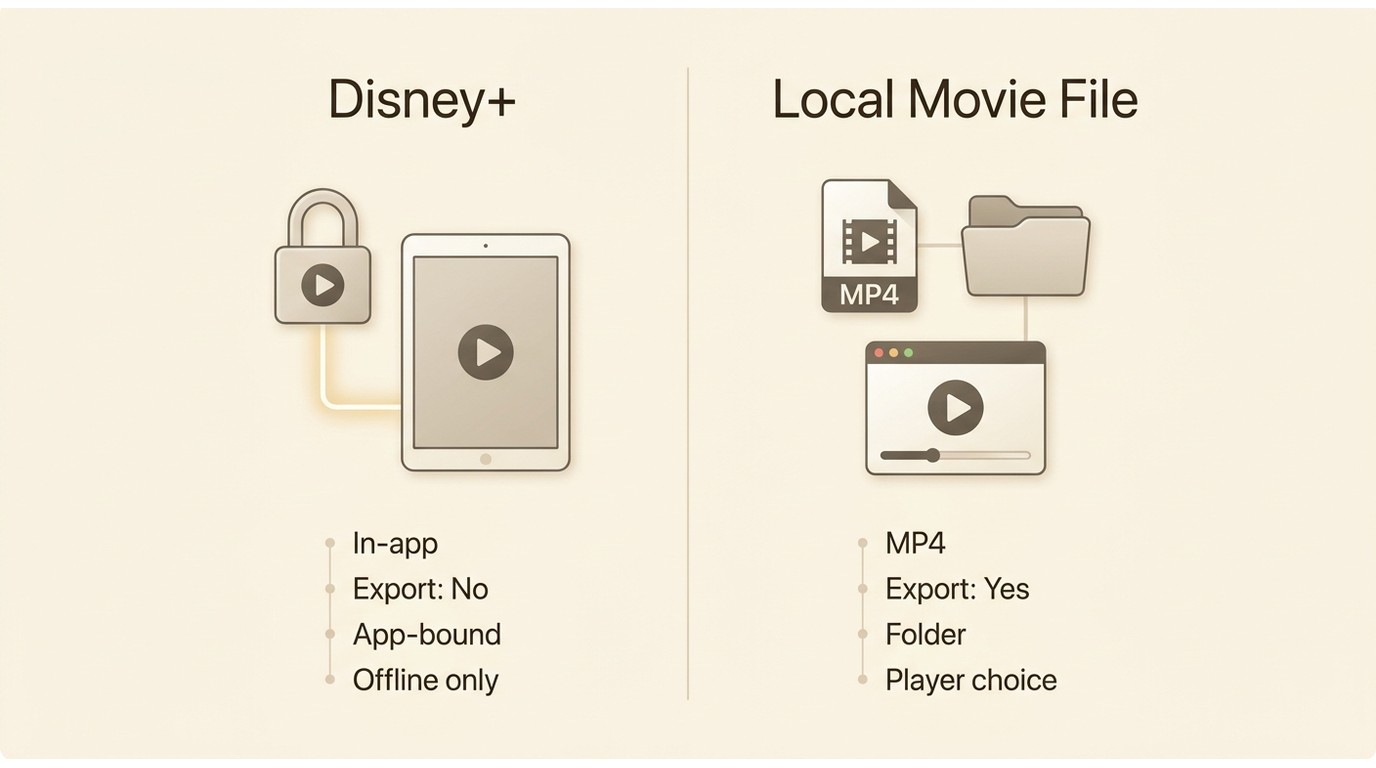
Official Disney+ downloads and a local Disney MP4 are different products. One stays managed inside the Disney+ app; the other is a standard file created through a separate desktop workflow for authorized personal viewing where platform terms and applicable law permit it.

What Disney+ Downloads Actually Save
Official Disney Plus downloads are app-bound copies on supported phones and tablets, not files you can browse, rename, or export from a PC. As of July 2026, in the United States, official Disney+ Downloads require Premium or an eligible Premium bundle on supported phones and tablets. Ad-supported plans do not include official Downloads, and the download device must reconnect to the internet at least every 30 days.
| Question | Official Disney+ download | Local MP4 file |
|---|---|---|
| Where is it stored? | Inside the Disney+ app | In a folder chosen by the desktop workflow |
| Supported viewing | Supported phones and tablets | Players that support the file's container and codec |
| Can it be exported? | No normal MP4 export | It can be copied like another file when the destination supports it |
| Access rules | Managed by Disney+ account, title, region, and download rules | Use for authorized personal viewing within platform terms and applicable law |
The distinction matters because the Disney Plus download limit explained for the official app does not describe how an independent local file behaves. Treating the two as interchangeable is the fastest way to choose the wrong method.
When a PC Workflow Makes Sense
A Disney Plus MP4 PC workflow makes sense when you need a standard file for a compatible desktop player, selected audio or subtitles, or repeatable episode handling. If mobile viewing is enough, the official Disney Plus download offline path is simpler and avoids another application.
- Quick distinction: Disney+ does not provide a standalone MP4 export for Windows or Mac.
- Choose by purpose: Use official downloads for supported mobile viewing; use a PC workflow when you genuinely need a local file.
- Keep the boundary clear: Work only with content you are authorized to access for personal offline viewing where permitted.
I would not start with resolution claims. First decide whether the file must leave the app, whether you need a full season or one clip, and whether playback time can be tied up during recording. Those three answers narrow the field immediately.
Download Disney Plus Videos to MP4: Four PC Methods
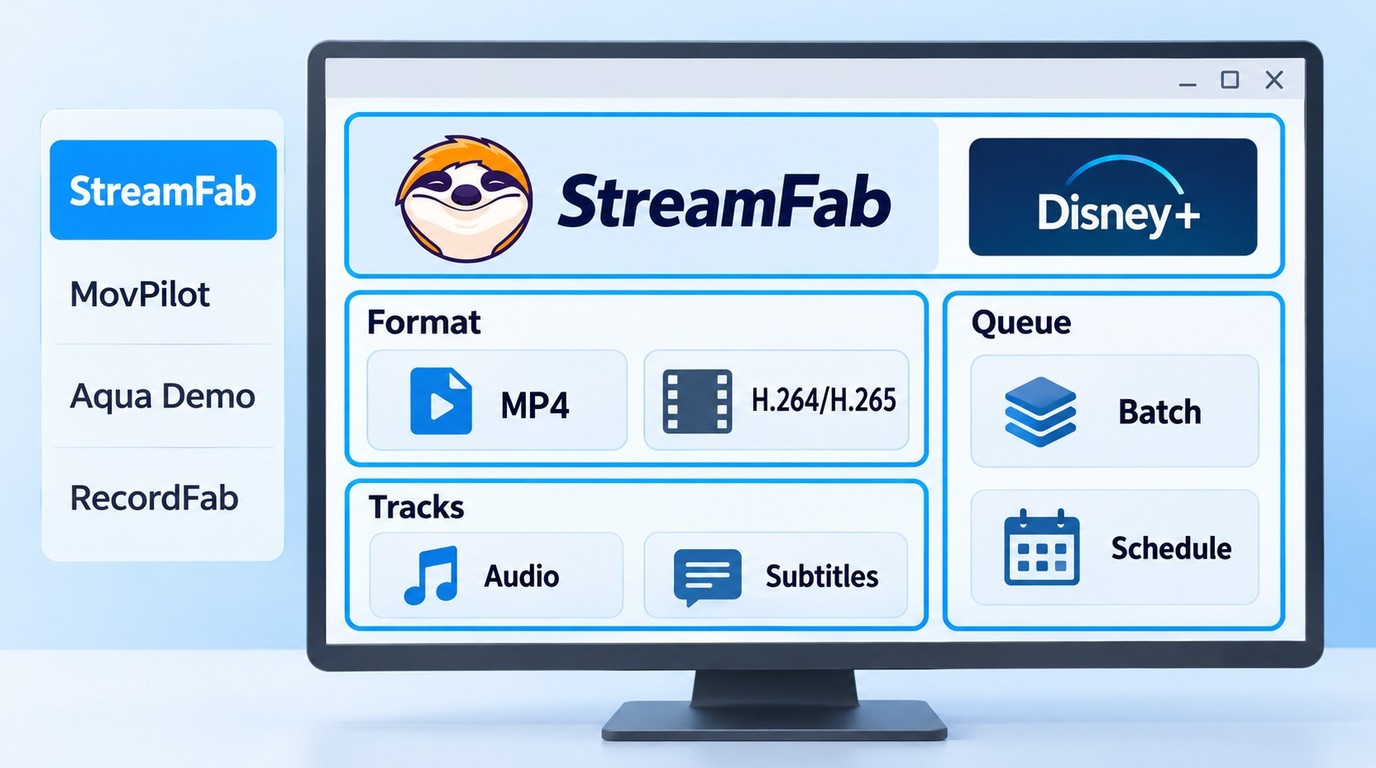
There are two broad Disney Plus MP4 converter designs: direct local-file workflows and screen-recording workflows. The four methods below cover both, with different trade-offs in quality selection, automation, foreground playback, and cost.

- Use these workflows only for personal offline viewing of Disney+ content you are authorized to access, where permitted by platform terms and applicable law. Do not share, sell, or commercially distribute the resulting files.
StreamFab: Quality and Automation
- Suitable for: readers building a local-file library who value batch handling, selected tracks, and scheduled episodes.
- Less suitable for: someone who needs only one short clip, where a manual recorder may be the simpler workflow.
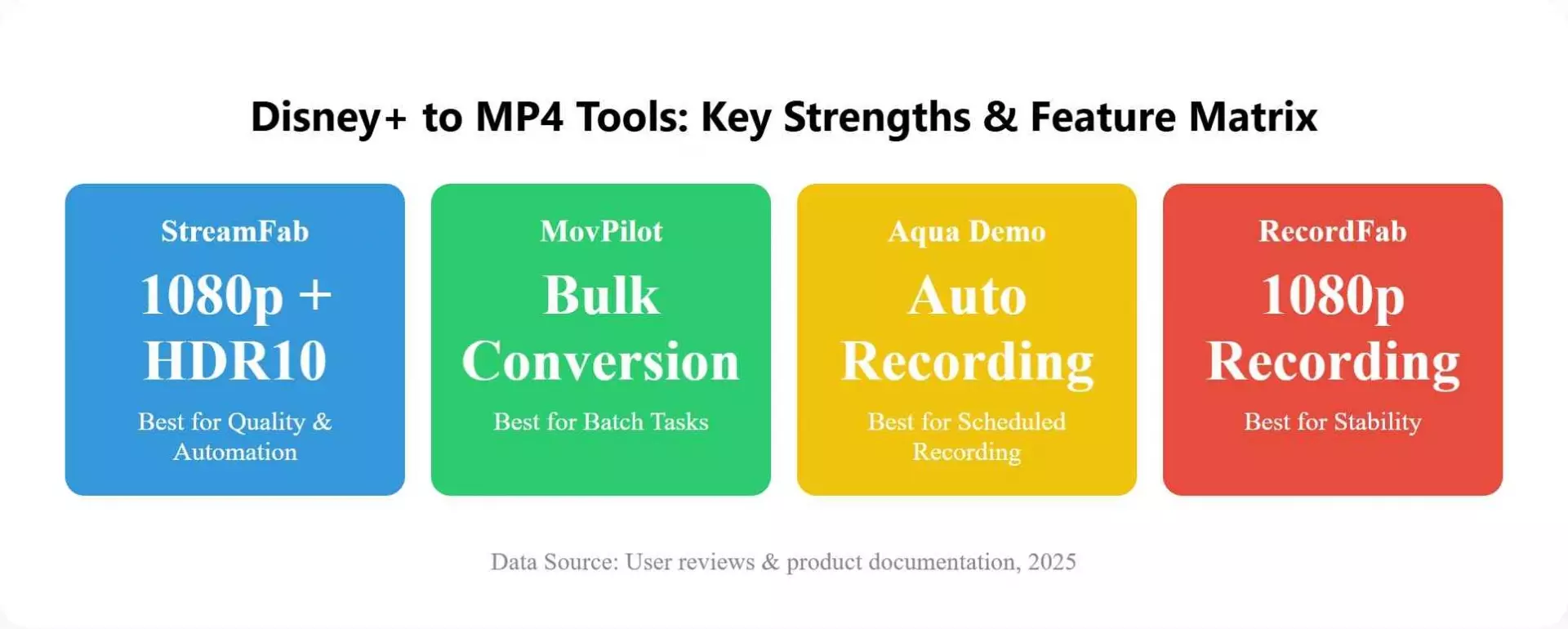
StreamFab Disney Plus Downloader supports a managed local-library workflow. It runs on Windows and Mac and outputs MP4 or MKV with H.264 or H.265.
Available quality can reach 4K, with HDR10 or Dolby Vision, Dolby Atmos, or other listed audio formats and selectable audio and subtitle languages. Those results remain title-, source-, subscription-, and region-dependent; software support does not make every track available on every title. Use the available trial to check the required title, tracks, output format, and destination device before building a larger queue.
- Saves Disney+ titles as MP4 or MKV on Windows and Mac
- Supports H.264 or H.265 for different playback and storage needs
- Lets you select available audio tracks and subtitle languages
- Handles batches and scheduled new episodes for recurring viewing
- Resolution, HDR, and audio availability depend on the source title and account
The useful difference is workflow control: you can queue titles, schedule new episodes, and choose tracks instead of recording each item in real time. The existing guide on how to rip Disney Plus movies on PC covers the longer desktop sequence without turning this comparison into another tutorial.
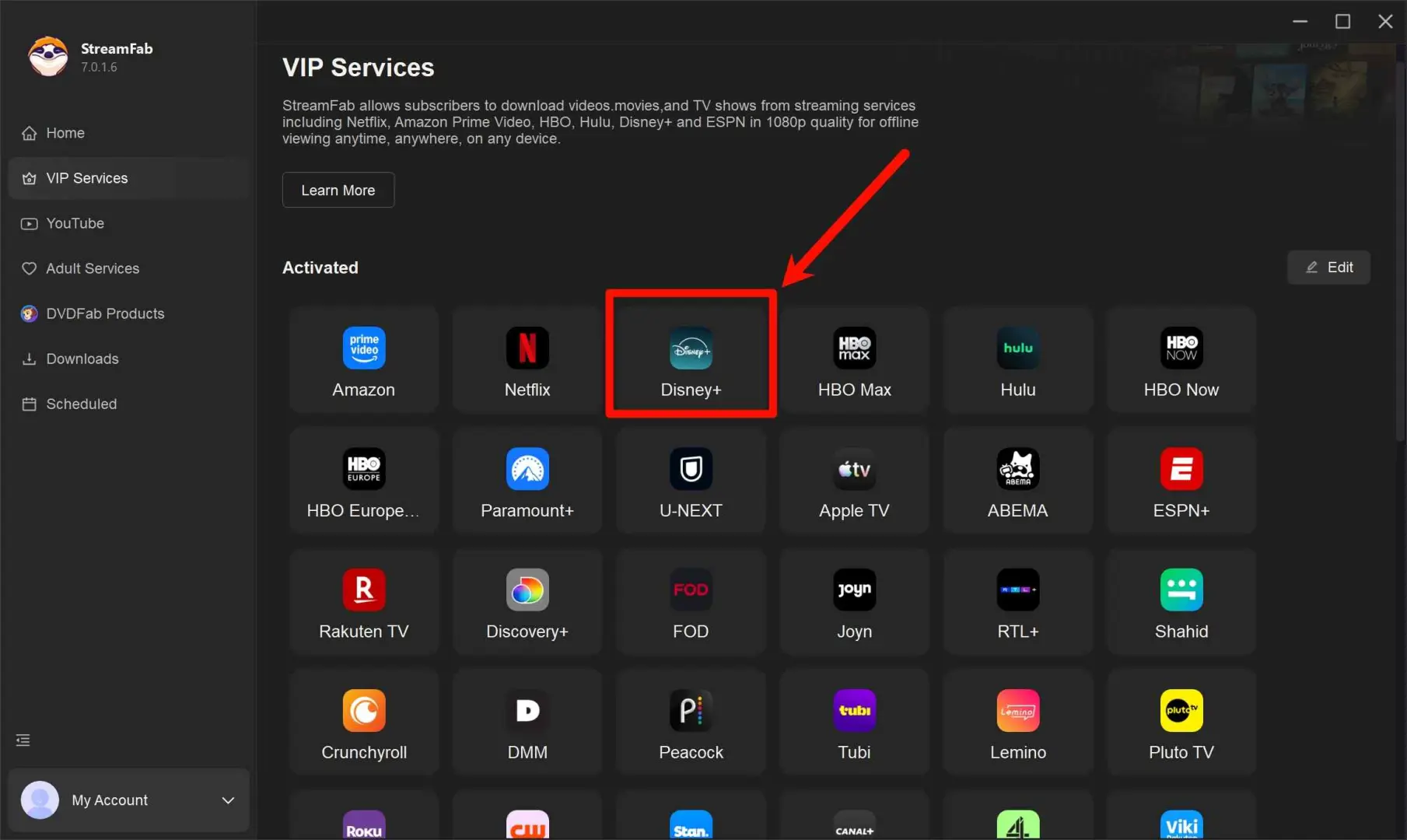
Navigate to the Disney+ service. Click on it to log in with your account. It should have an activated subscription to let StreamFab access the titles waiting to be converted.
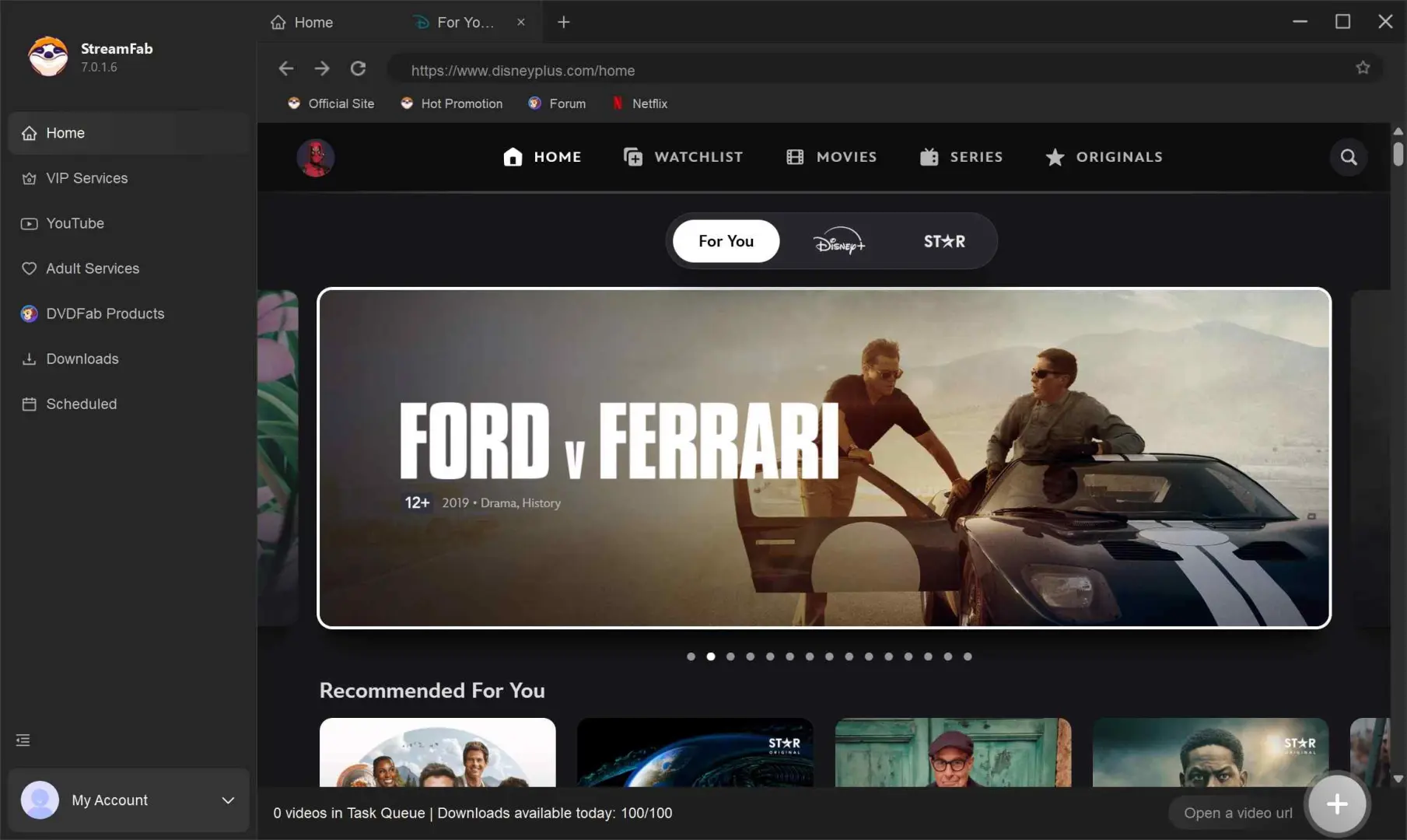
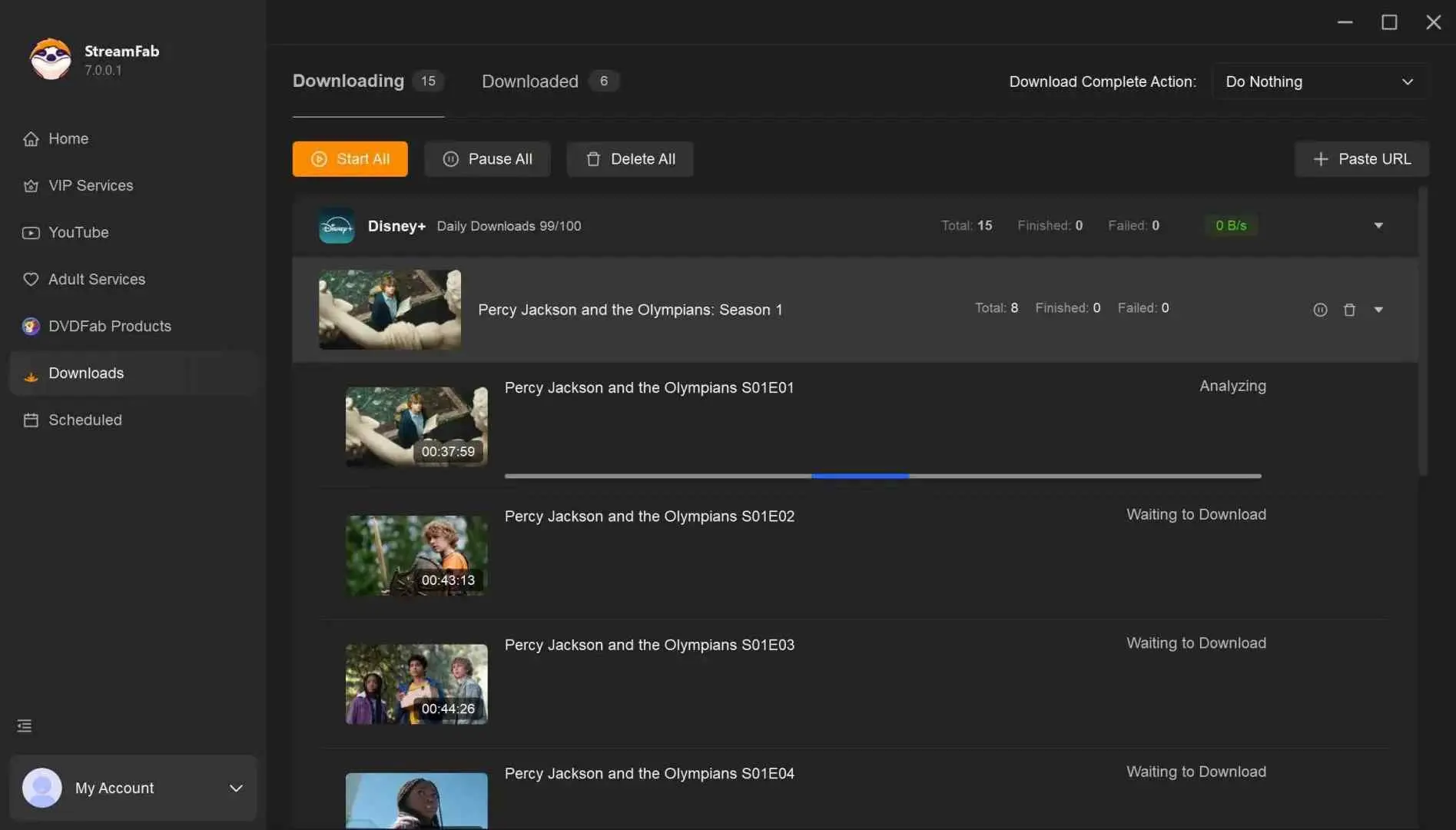
Pick the Disney+ titles you want to convert to MP4. Click on it to open its info page. StreamFab will now start analyzing. Soon, you can adjust the settings in the pop-up like the one in this image.
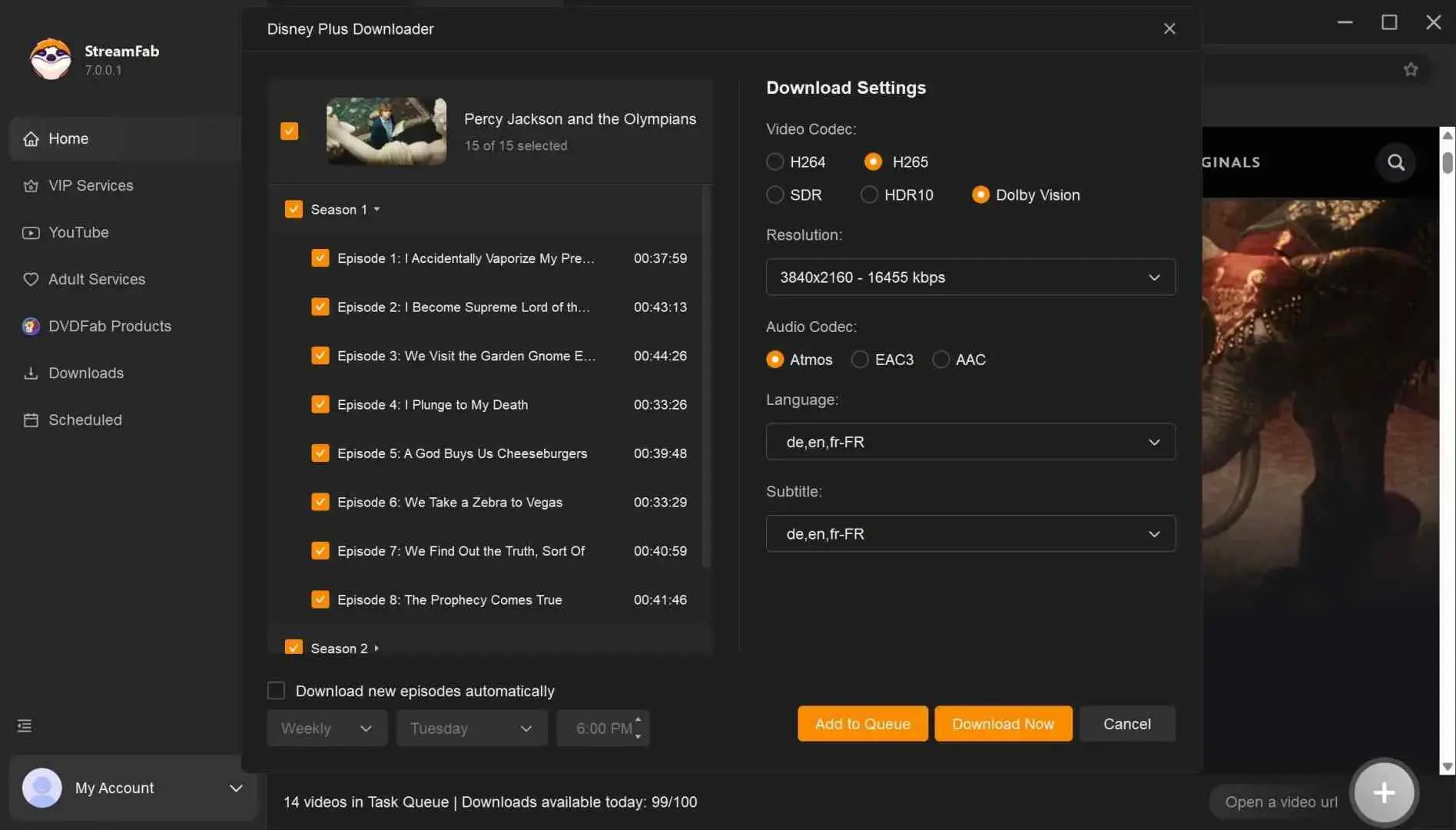
Click on Download Now to convert Disney+ to MP4. Or later by clicking on Add to Queue. You can find the converted Disney+ videos in the Downloaded section.
MovPilot: Direct Downloads up to 720P
- Suitable for: readers seeking a straightforward direct-download alternative at up to 720P.
- Less suitable for: users who need output above 720P.
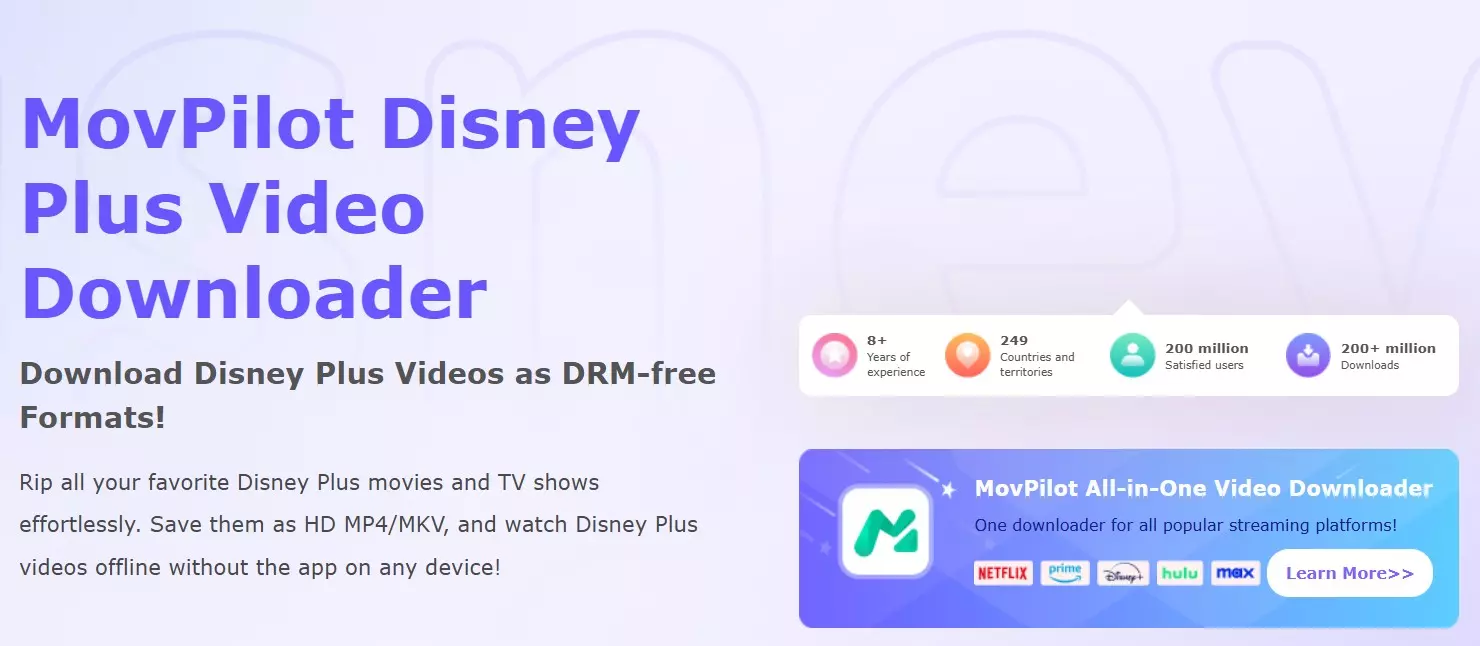
MovPilot Disney Plus Video Downloader offers Disney+ output up to 720P. Its conventional download-style interface suits readers who want a straightforward direct-download workflow.
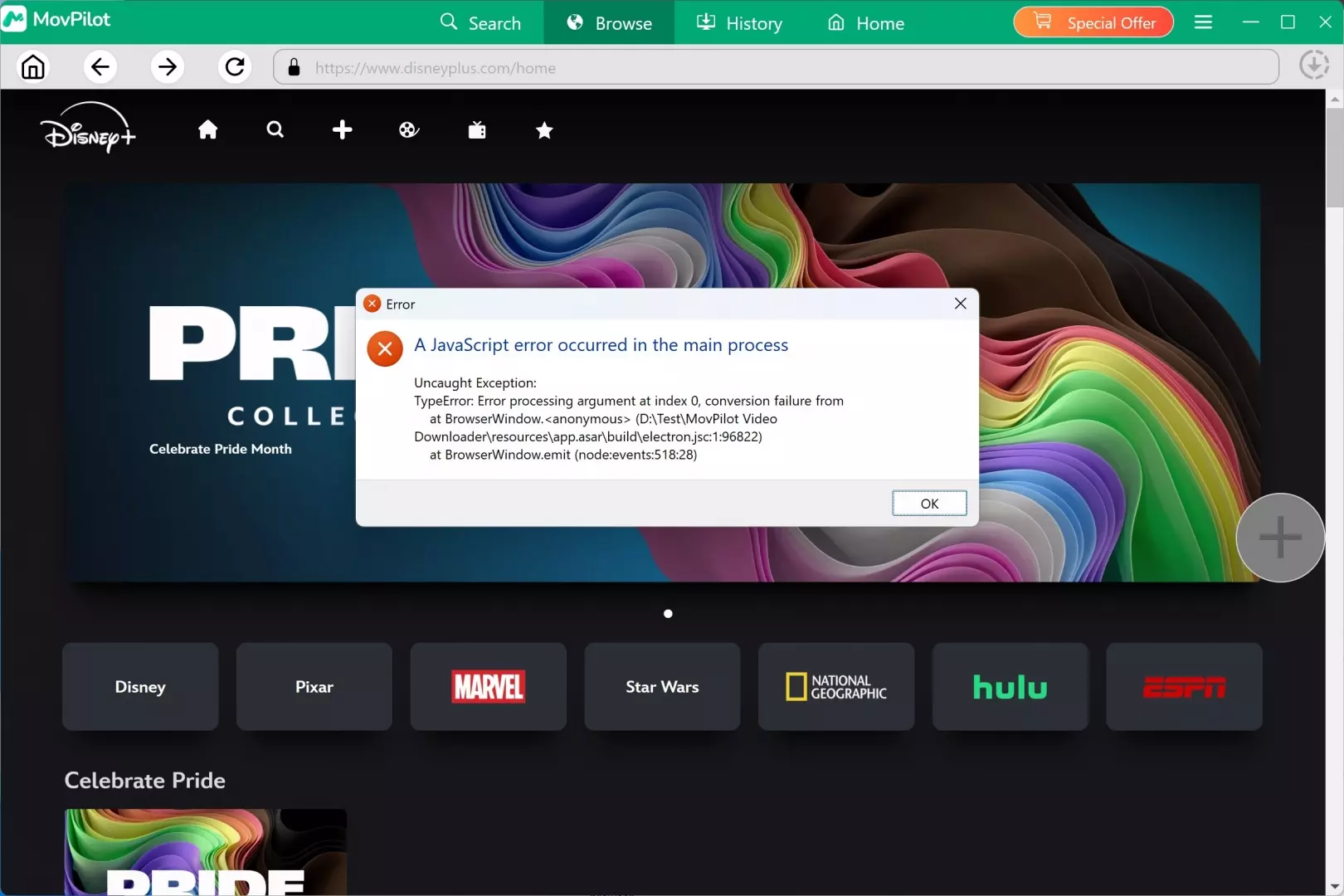
Install MovPilot Disney Plus Video Downloader on your PC and run it. You will see a Disney+ icon on its homepage. Click it to log in.
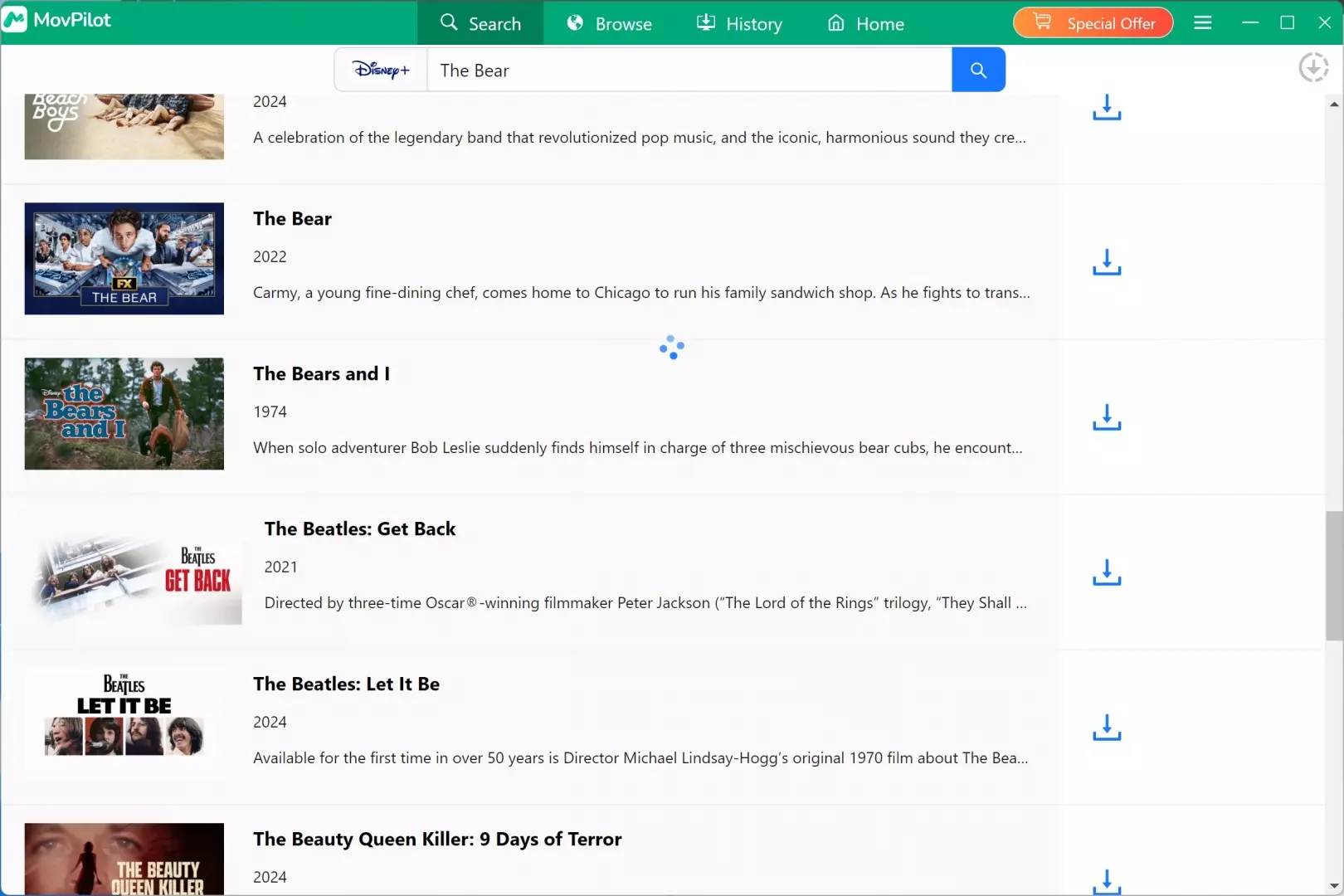
Search for the titles you want to convert in the built-in browser. Click on the big "+" mark. You can adjust the settings now. Or you can use its search function instead.
Make sure all settings are set. Then click OK to start the conversion. The task process will be listed clearly aside.
Aqua Demo: Basic Screen Recording
- Suitable for: occasional manual capture when you already need a general recorder.
- Less suitable for: seasons, unattended jobs, selected source tracks, or anyone who does not want playback occupying the screen.
Aqua Demo represents the general screen-recorder route. It records the playback window rather than managing a Disney+ library, so the method is easy to understand but consumes playback time and requires attention to browser, audio, and display settings.
Hardware acceleration can affect whether a recording shows video or a black frame, but the required setting varies by browser, graphics driver, and recorder. If you need the full sequence, the existing how-to screen record on Disney Plus walkthrough explains where that setting sits and why it matters.
Install Aqua Demo on your PC. Launch it and turn off the hardware/graphics acceleration option in your browser.
Open Disney+ and find the title you want to convert to MP4. Select the video player as the recording area.
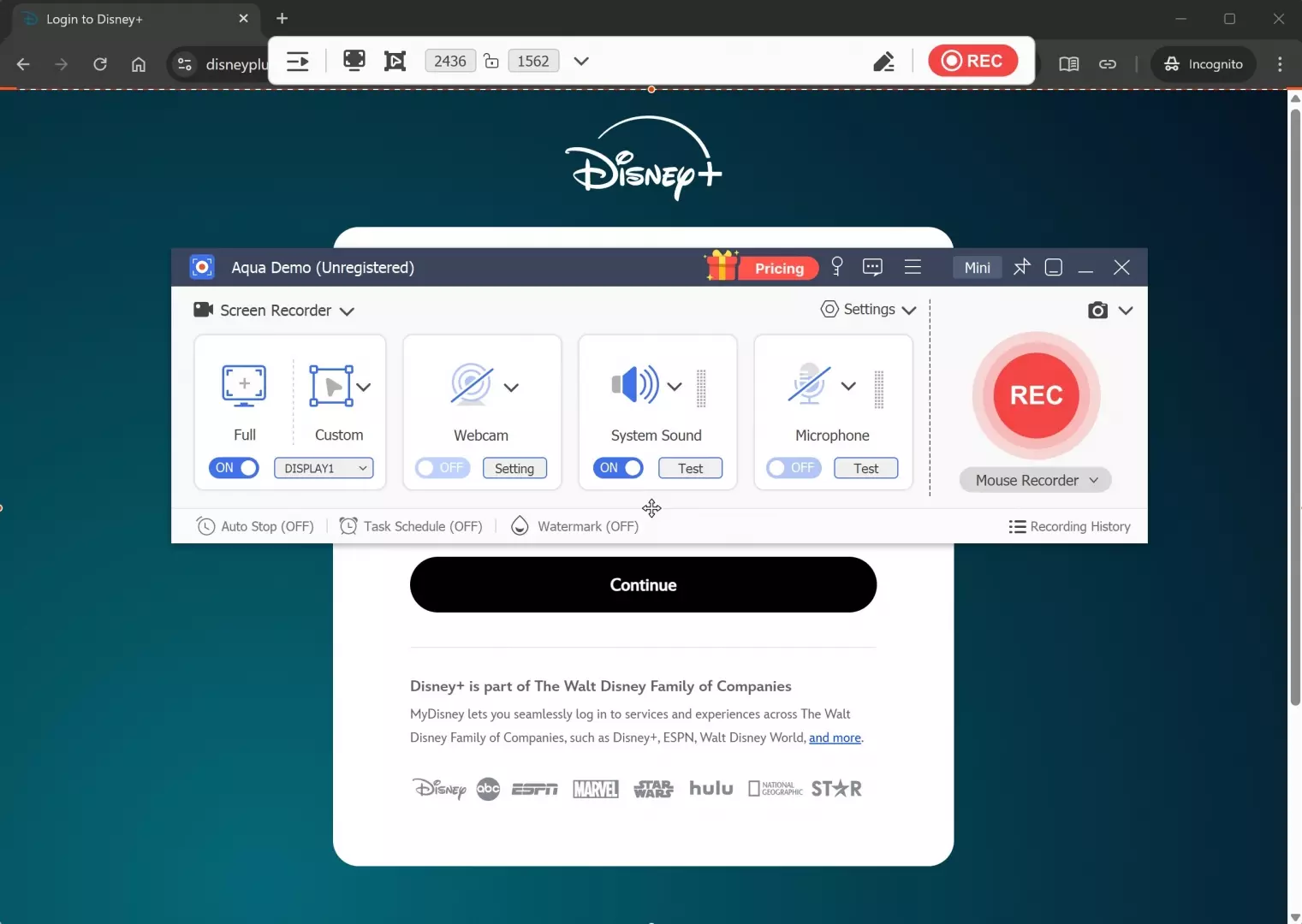
Start recording and play the video. You have to wait until the title finishes playing to get the MP4 version.
RecordFab: Background Recording up to 1080p
- Suitable for: readers who prefer streaming-focused background recording.
- Less suitable for: batch season handling, scheduled new episodes, or choosing among available source audio and subtitle tracks.
RecordFab is the streaming-focused recording option in this lineup. It runs on Windows, records at 1080p or 720p, and outputs MP4 or MKV. Its background-oriented design is less intrusive than a basic screen recorder.
The trade-off is that recording remains a recording workflow: RecordFab does not offer ad removal, batch downloading, subtitle downloading, or automatic new-episode downloads. StreamFab Disney Plus Downloader provides queues, selected-track handling, and scheduled episodes for a recurring desktop-library workflow. I would choose RecordFab when screen occupancy is the main problem, not when library automation is the goal.
Download it from the official site and install RecordFab wherever you like. Run it by double-clicking on its desktop icon.
You can find Disney+ on all supported sites. Click and log in to your account within the built-in browser.
Now search for the video you want to convert to MP4. Play it, and RecordFab will detect it. Click on Start to wake up the customization panel.
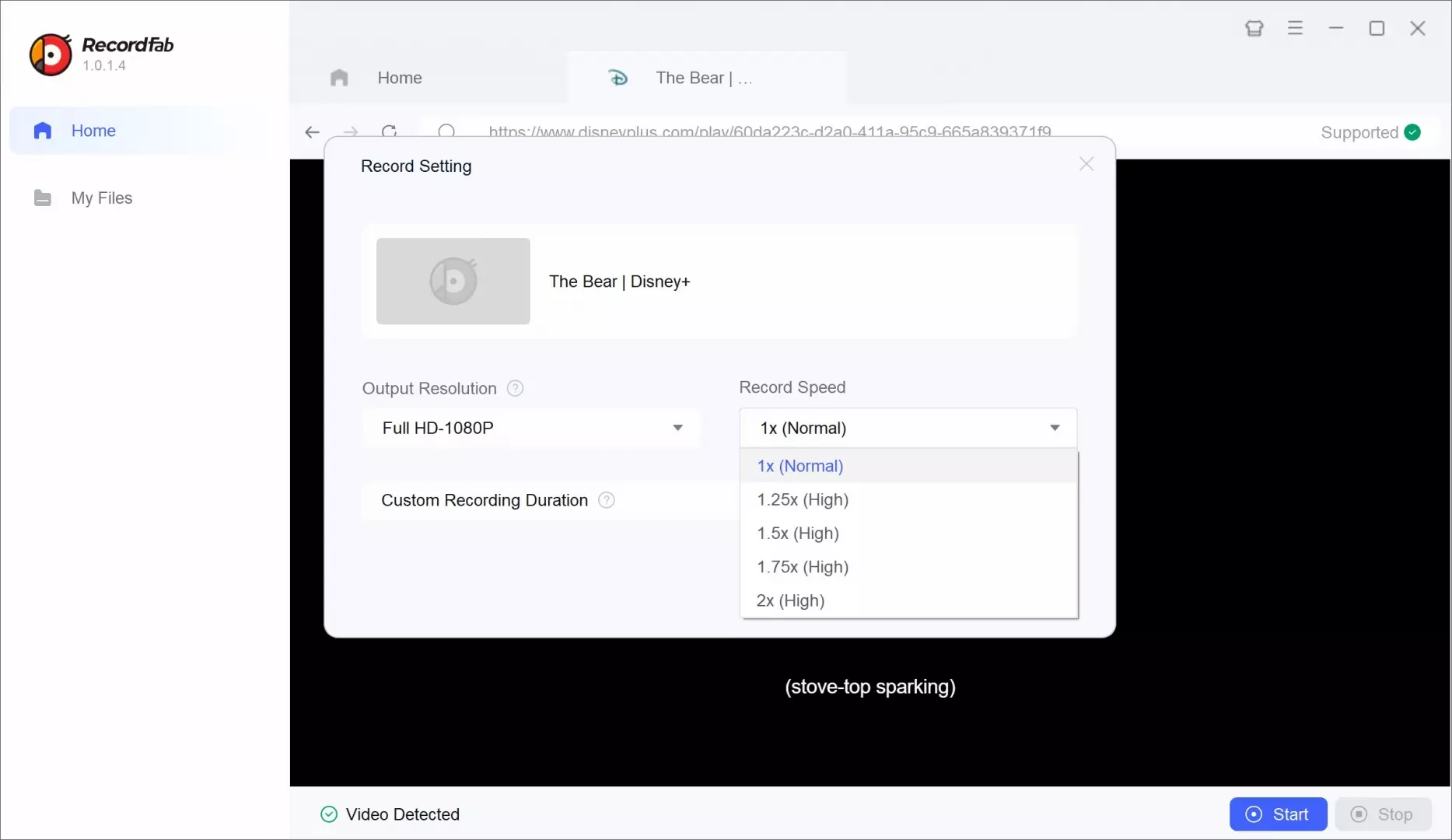
After every status is adjusted, click on OK to start recording. You can leave it recording in the background and do what you normally do on your PC, without worrying about the interruptions.
Disney Plus MP4 Settings That Matter
Disney MP4 settings should be chosen for the device that will play the file. Container, codec, tracks, and resolution affect compatibility and storage more than a vague "maximum quality" label.
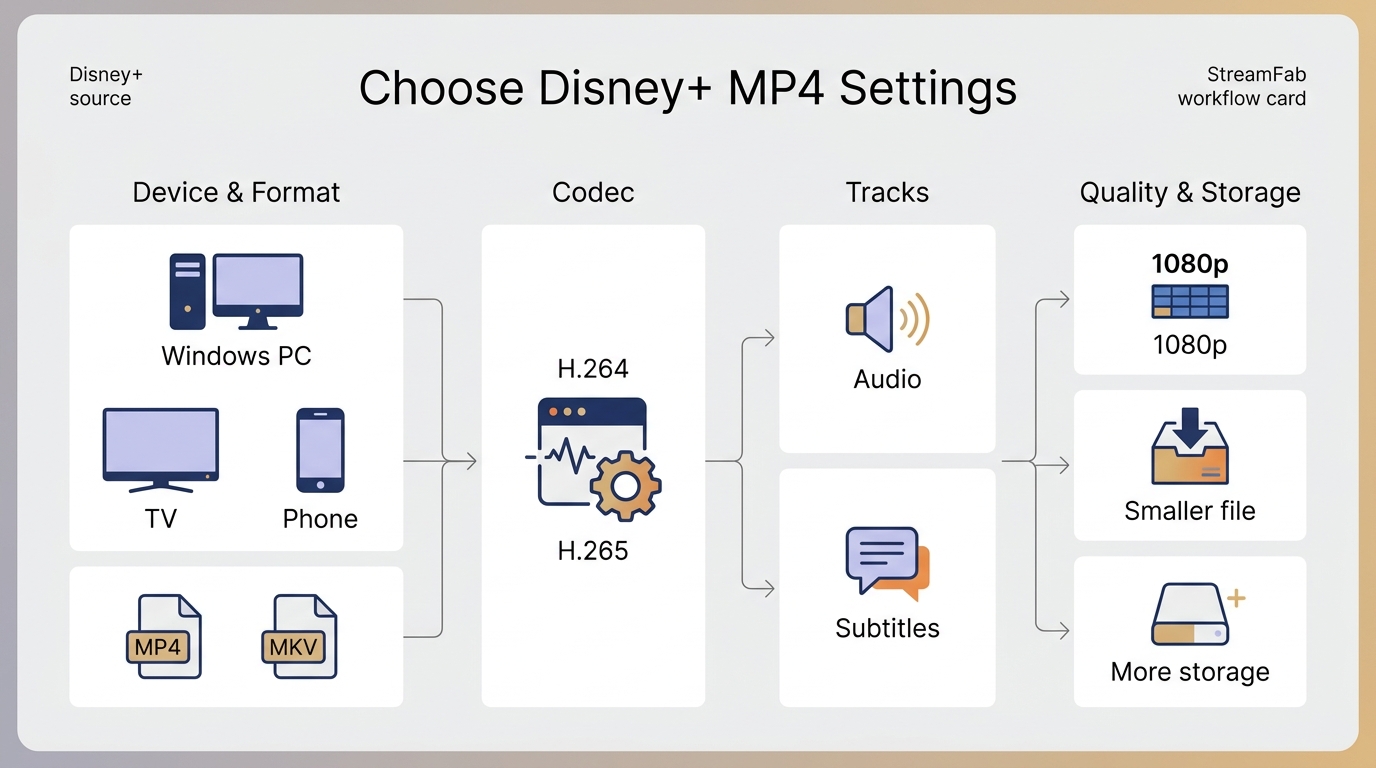
MP4 or MKV
MP4 is the safer default for broad playback on PCs, TVs, media boxes, and USB-connected devices. MKV is more flexible when you want several audio tracks or subtitle streams in one file, but some built-in TV players handle it less consistently.
My default for most PC users is MP4 unless the media library has a specific reason to keep multiple tracks in one container. A format decision should reduce playback friction, not create a second troubleshooting project.
H.264 or H.265
H.264 favors compatibility, while H.265 can reduce storage needs at similar visual quality when the playback device supports it. Older televisions, media players, and editing applications are more likely to accept H.264 without extra setup.
- Choose the target playback device before starting the job.
- Select MP4 with H.264 for the broadest compatibility.
- Use H.265 when storage matters and every target device supports it.
- Pick the needed audio and subtitle tracks instead of saving unused languages.
- Test one representative title before queuing a season.
Audio, Subtitles, and Storage
Dolby audio, Disney Plus subtitles, HDR, and resolution depend on what the title, account, region, and tool expose. StreamFab can select available audio languages and save subtitles as a separate SRT file, which lets a compatible player adjust text size, or within the file, but that capability cannot create a track the source does not offer.
Video bitrate and duration account for most file size. Additional audio tracks add data, while text subtitles usually add little. For a general media library, I would keep the primary audio track, one needed subtitle track, and the highest resolution the actual display can use. That is usually a better balance than saving every available stream.
Compare the Four MP4 Workflows
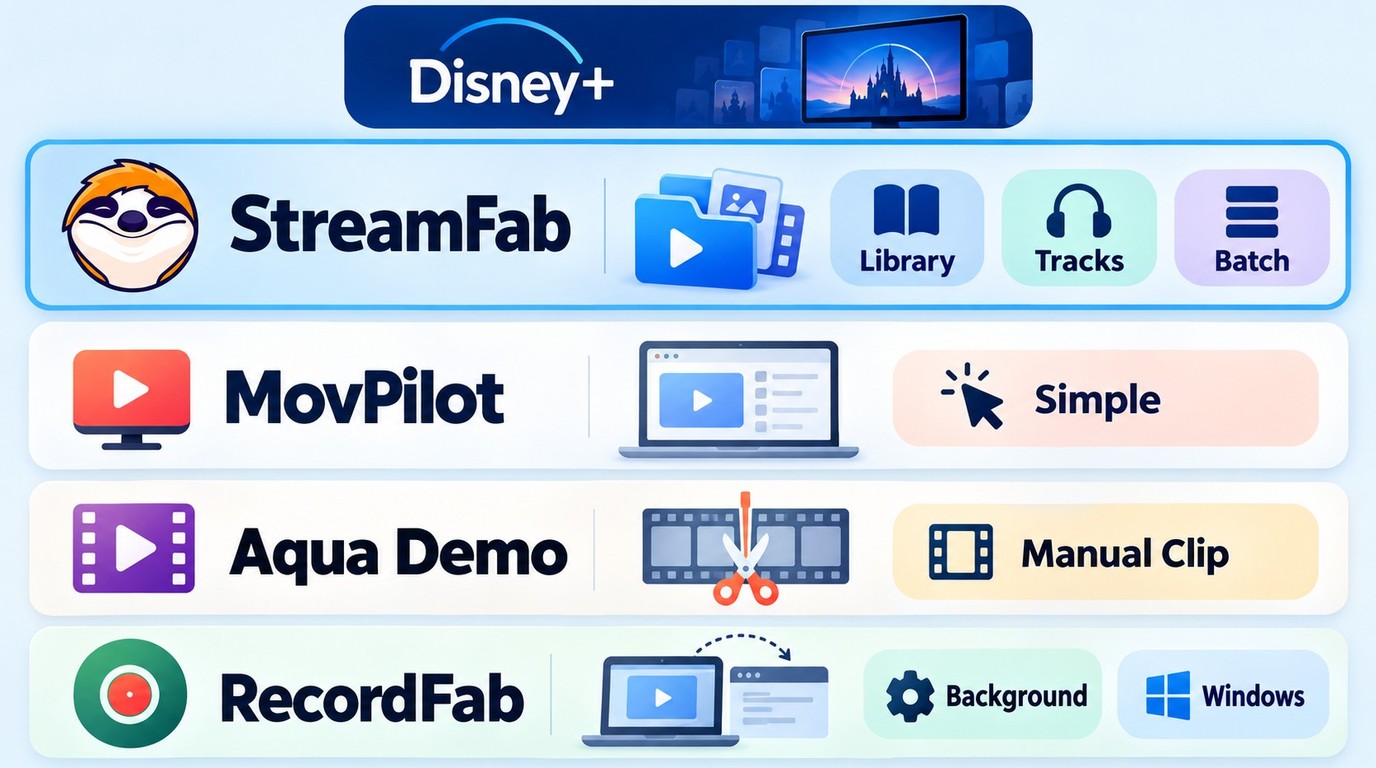
The comparison is easiest when you separate direct-download tools from recorders. StreamFab emphasizes track choice and automation; MovPilot offers a simpler direct-download workflow; general recording emphasizes flexibility; streaming-focused recording reduces foreground disruption.
Choose a Workflow by Use Case
- Need batches or scheduled episodes? Choose a direct local-file workflow with queue and scheduling support.
- Need selected audio or subtitles? Confirm that the title exposes the required tracks before starting a full queue.
- Need simple travel viewing rather than a PC file? Official downloads are the simpler way to watch Disney+ offline without Wi-Fi on a supported phone or tablet; for one occasional PC clip, a recorder may be enough.
| Method |
Workflow |
Output |
|---|---|---|
| StreamFab Disney Plus Downloader |
Direct local-file workflow | MP4 or MKV |
| MovPilot Disney Plus Video Downloader | Direct download workflow | MP4 |
| Aqua Demo | Manual screen recording | MP4 |
| RecordFab | Background recording | MP4 or MKV |
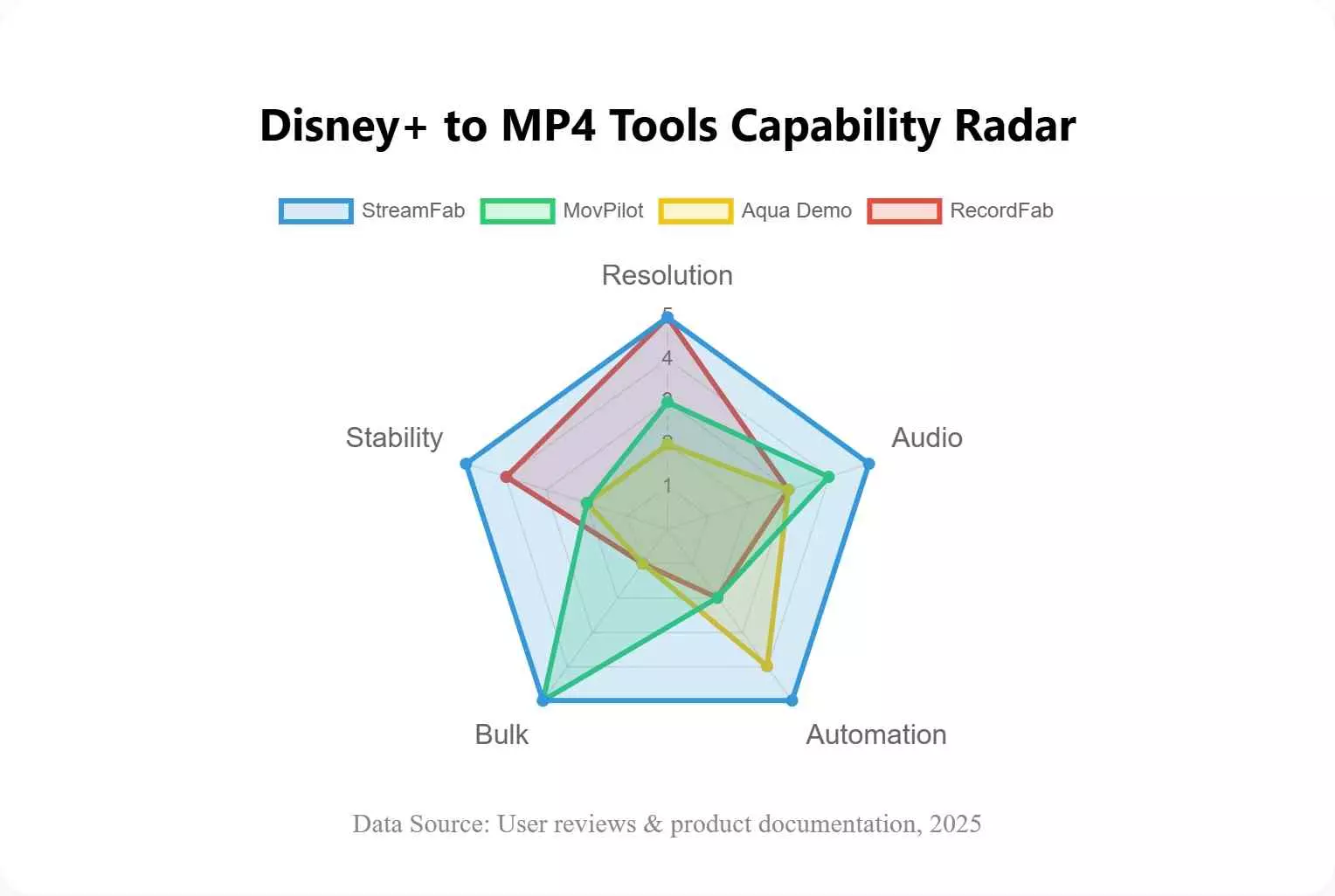
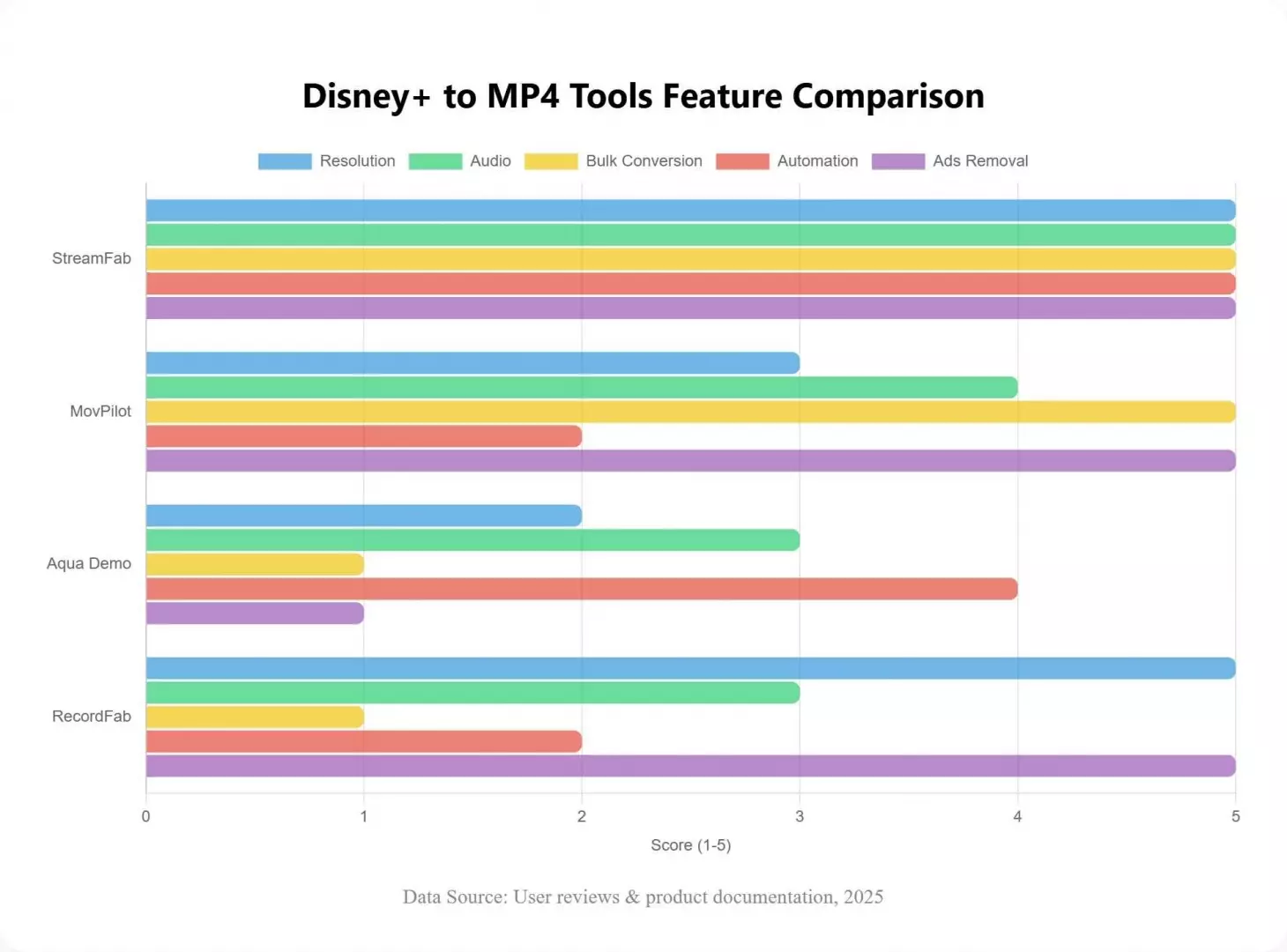
- My rule is to decide whether you need a standalone MP4 before comparing tools. If you do, choose between a direct local-file workflow and recording based on whether you need repeatable file handling or occasional capture; if you do not, official mobile downloads are simpler.
Price and Trial Caveats
A Disney+ subscription provides service access; a desktop software license is a separate purchase.
A completed StreamFab trial sample is valuable when it confirms login, title detection, the required tracks, the chosen container, and playback on the destination device. It is not enough to open the app and see a title thumbnail; the meaningful checkpoint is a completed sample that plays with the tracks and container you intend to use.
Disney Plus Troubleshooting
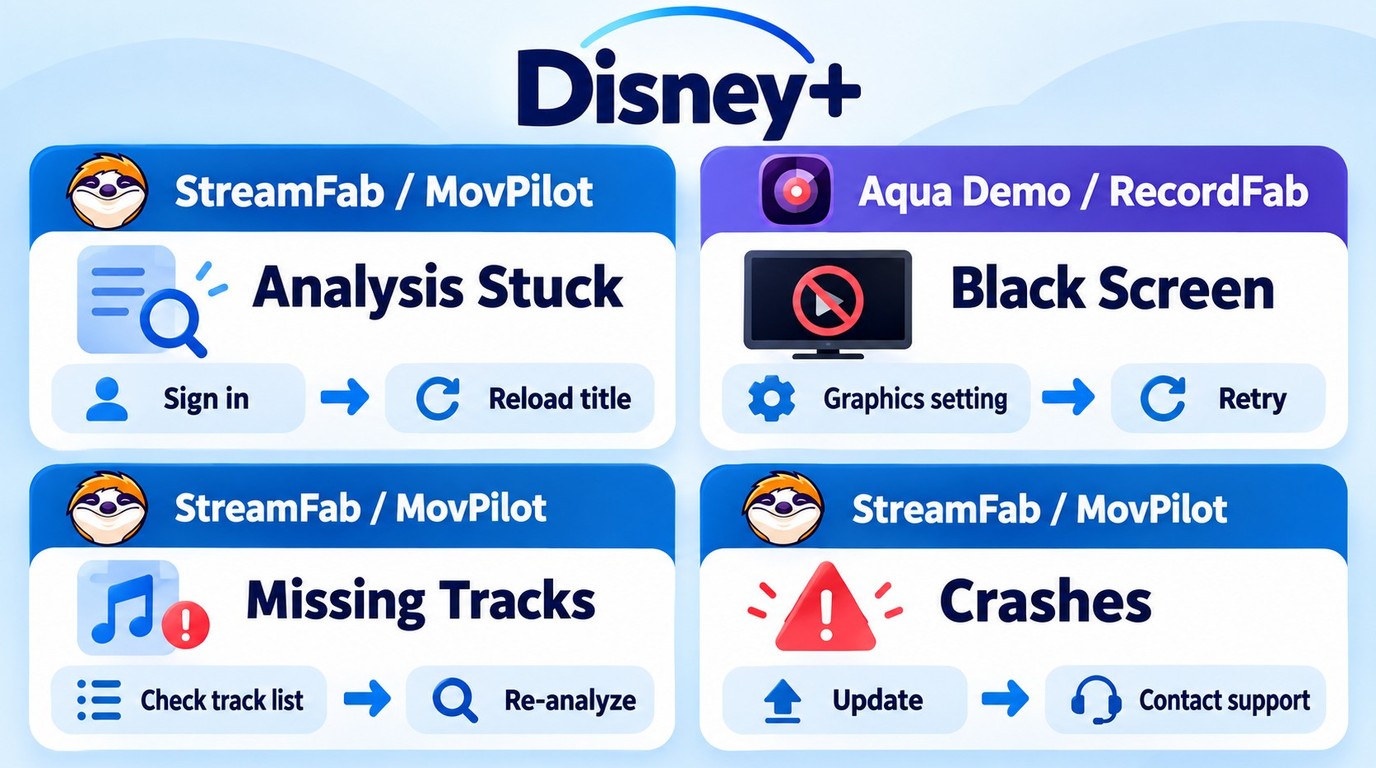
Most failures fall into four groups: session authentication, title detection, output-track selection, or recording setup. Work from the symptom instead of changing every setting at once.
Stuck Analysis or Missing Download
If analysis stalls or the download control disappears, reauthenticate first, relaunch the application, and test a second playable title. Streaming-service updates can temporarily affect desktop compatibility, so install an available update through the application or official installer and contact product support if detection still fails across playable titles.
Crashes, Audio, and Black Screens
For a crash or error code such as 10222, record the title, exact application version, operating system, and code for product support; missing tracks call for output language settings; a black recording calls for browser and graphics setting checks. Keeping those symptoms separate makes support logs far more useful.
| Symptom | First checks | Next step |
|---|---|---|
| Analysis stalls | Sign out and in, relaunch, test another title | Install the official update or contact product support |
| Download control is missing | Confirm the title plays in the active account and region | Reauthenticate, install an available update, then contact support |
| Crash or error code | Record the title, app version, OS, and exact code | Send those details to product support |
| Audio or subtitles are missing | Inspect the selected audio and subtitle tracks | Retry a playable title, then contact support if needed |
| The transfer is slow | Pause other network-heavy jobs and check available storage | Retry one title before rebuilding the queue |
| The recording shows a black screen | Check browser acceleration, capture mode, and graphics driver behavior | Switch capture mode or use a direct local-file workflow |
- Session issue: Reauthenticate, relaunch, and test another playable title.
- Track issue: Inspect audio and subtitle selection before starting again.
- Version issue: Install an available official update and contact product support if the issue continues.
- Support request: Include the application version, operating system, title, and exact error code.
FAQs
Can I copy a Disney+ MP4 file to a USB drive?
A genuine local MP4 can be copied to a USB drive when the drive's filesystem accepts the file size and the destination device supports the codec. Official Disney+ app downloads cannot be exported to USB as normal MP4 files. Keep local copies to authorized personal viewing where permitted.
Why are some Disney+ audio tracks or subtitles missing?
Track availability can vary by title, region, account, and tool. Select the needed language before starting, then test another title if it is absent. If the second title exposes the track, the first title's source availability is the more likely limit.
Is a free trial enough to test Disney+ compatibility?
It can be enough if you test the complete path: login, title detection, one representative title, the required audio and subtitle tracks, the chosen container, and playback on the target device. A trial is not an unrestricted free license and does not replace an active Disney+ subscription; use the completed sample to answer a concrete compatibility question.
Are online Disney+ MP4 converters reliable?
Online Disney+ MP4 converters are separate from the official Disney+ app, which does not export downloads as ordinary MP4 files. For a desktop local-file workflow, use the application’s official installer and keep account sign-in within the application.
Conclusion: Final Recommendation by Use Case
Use official downloads for supported mobile viewing, a direct local-file workflow for a managed PC library, a general recorder for an occasional manual capture, and a streaming-focused recorder when background operation matters more than source-track selection.
The final boundary is simple: keep an active, authorized Disney+ account, use local files for personal offline viewing, and follow platform terms and applicable law. A good workflow should make playback more manageable without turning sharing or commercial distribution into part of the plan.
